Set up online bookings
Go from no packages to a booking page where clients pick a time, sign your contract and pay a deposit.
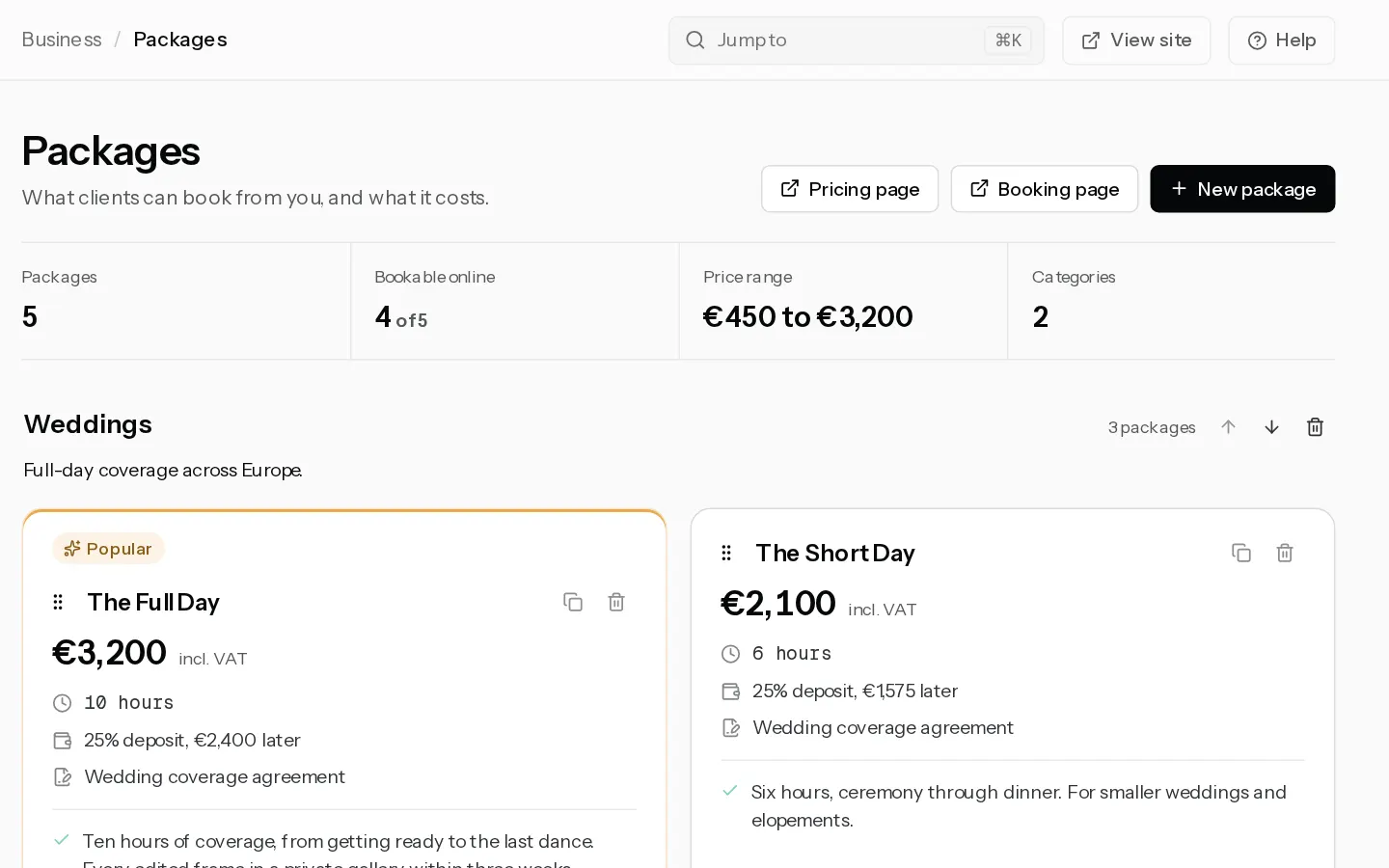
Online booking gives you a page where clients pick a package and a time, sign your contract and pay a deposit. It needs Starter or above, and the 14-day trial includes it.
Before you start
- Confirm your email address. Your booking page stays offline until you do.
- Connect Stripe. Clients pay the deposit through it, and no package can take bookings until Stripe can pay you out. See Connect Stripe.
On a new account the booking pages may not be in the sidebar yet. Use the links below, and they appear in the menu once you create your first package.
1. Create a package
- Open Packages and select New package.
- Fill in the name, the price, the deposit and the session length.
- Switch on Clients can book online and select Create package.
The card shows Bookable online. Details are in Create a bookable package.
2. Set your hours
- Open Availability and select Weekly hours.
- Switch on the days you work and set the times, or select Open Monday to Friday, 9 to 5.
- Select Save hours.
- Select the time zone button in the toolbar and check Times in, Minimum notice and Book up to.
3. Write your contract
- Open Contracts and select New template.
- Pick a starting template, change the terms to yours and select Set default.
- Select Save.
Skip this and clients sign a built-in standard agreement. See Write the contract clients sign.
4. Connect your calendar
This step is optional and recommended. Busy times in your own calendar then block booking times, so a client cannot book over a dentist appointment.
- Google Calendar: Connect Google Calendar.
- Apple, Outlook and others: Import another calendar.
5. Check it as a client
- On Availability, select Preview as client to see the start times a client gets for each package.
- On Packages, select Booking page to open the public page in a new tab.
- To match your brand, open Booking page in the sidebar and pick a preset, colours and font.
When a package and your hours are both in place, Clients can book you shows at the top of Availability.
6. Share the link
Your booking page is xposureapp.net/@yourhandle/book. Put it on your website, in your Instagram bio and in replies to enquiries. On an enquiry, Copy booking link copies it for you.
What happens when a client books
- The client picks a time. It is held for 15 minutes while they sign, and 35 minutes once they reach payment, and shows as Pending in Bookings.
- Once the deposit is paid the booking turns Confirmed. You and your client both get an email, and it lands in your Google Calendar if you connected one.
- A week before the session, a client with a balance still open gets a reminder with a pay link. See Take deposits and collect the balance.
- Questionnaires go out on the rules you set. See Send questionnaires to your clients.
To see the booking from your client's side, read Book a session and pay the deposit.
Note: If a hold runs out before the client pays, nothing is charged, the time is free again and the pending booking leaves your list.
Did not find your answer?
Tell us what you are trying to do. Support replies by email.