Book a session and pay the deposit
Pick a package and a time, sign the agreement and pay the deposit that confirms your session.
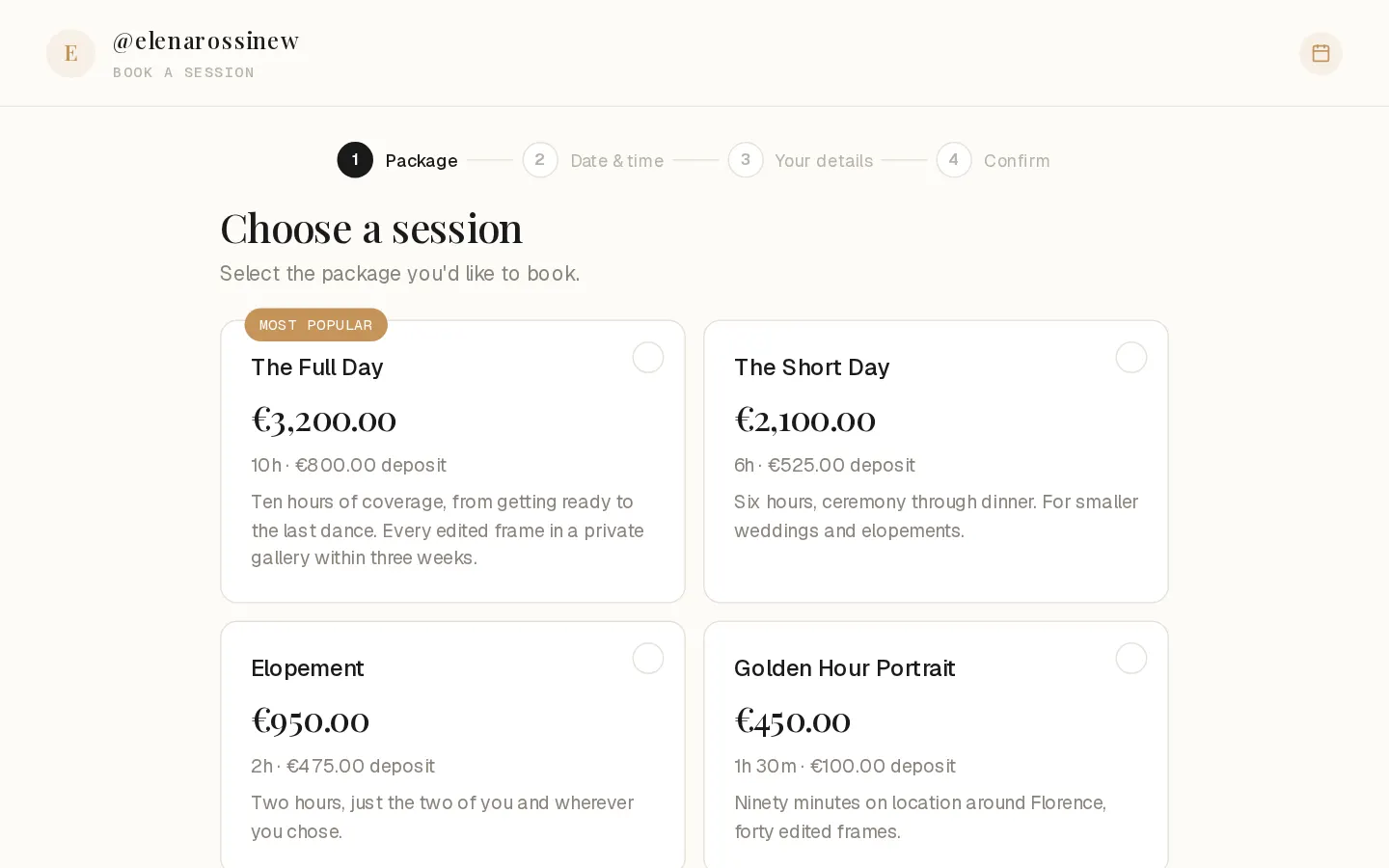
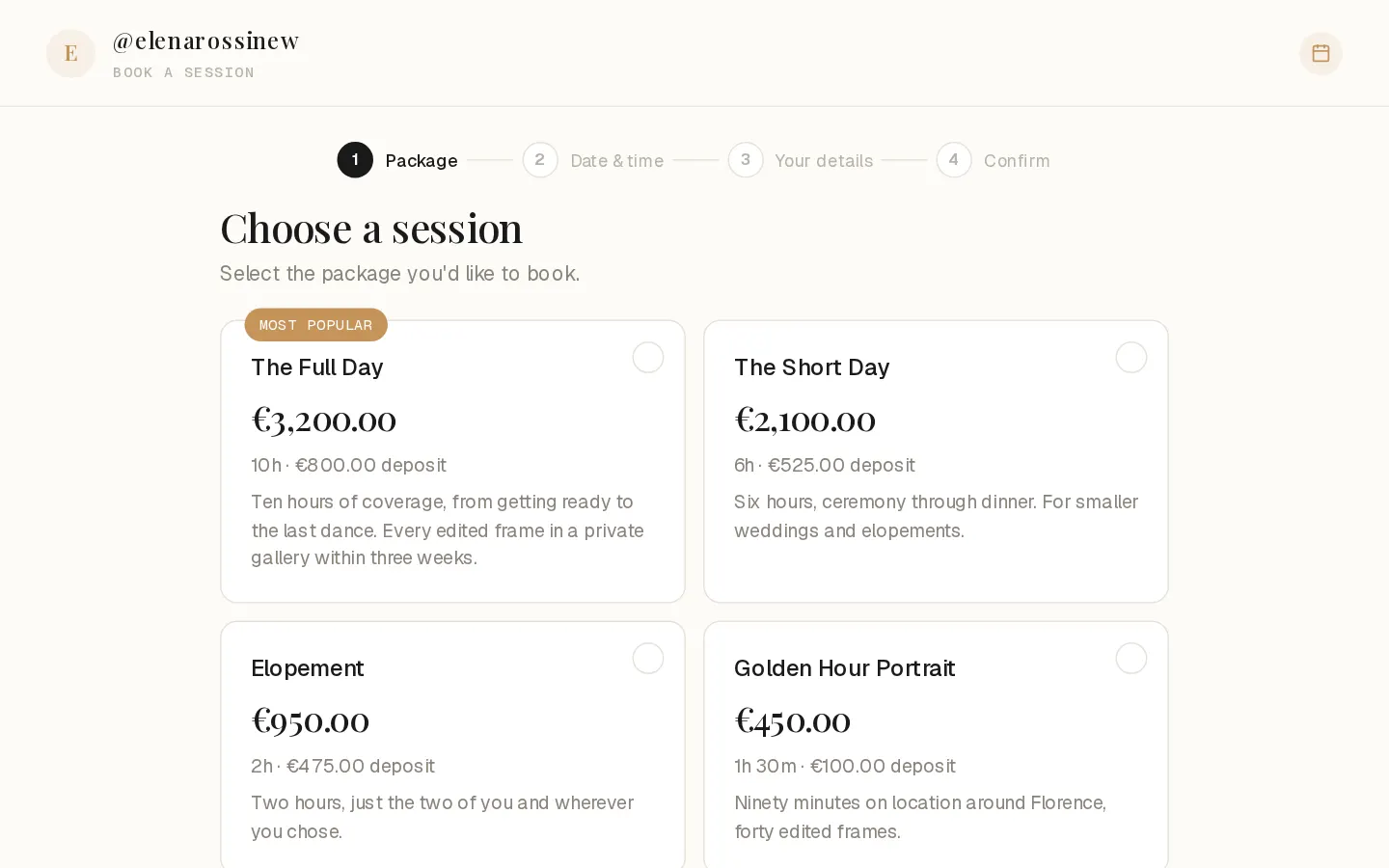
Your photographer's booking page lets you reserve a session online. You pay a deposit now to confirm it, and the rest before the day.
Book a session
- Open your photographer's booking link. It is on their website, or they send it to you.
- Under Choose a session, select a package. Each one shows its price, its length and the deposit.
- Pick a day with open times, then a time, and select Continue. Times are in the photographer's time zone, named under the calendar. If the studio lets you choose who shoots, pick a photographer or Any photographer first.
- Enter your full name and email. Your phone number is optional, and you do not need an account. Select Continue.
- Your time is now held for you, with a countdown at the top of the page. Read the agreement, sign it by typing your full name, and tick the box to accept it and the deposit payment.
- Select Pay with the deposit amount, then pay on Stripe's secure payment page.
You land on You're booked in. An email follows with your confirmation, the pay link for the balance and a link to your client portal, where your signed agreement is saved. Select Add to calendar to save the date.
Note: The time is held for 15 minutes while you fill in the form, and for 35 minutes once you reach payment. If you leave the payment page, nothing is charged, and the time is released when the hold runs out. Pick a time and start over.
When the deposit is the whole session price, Due now shows the full amount and nothing is left to pay later.
Pay the balance
Your agreement says when the rest of the session price is due. A week before your session, while a balance is open, you get an email with a reminder and a pay link.
- Open the pay link from your confirmation or reminder email.
- Check the Session total, Paid so far and Balance. When VAT is part of the price, VAT included shows how much.
- Select Pay with the balance amount, and pay on Stripe's secure page. A receipt follows by email.
Manage or cancel a booking
- Open the link in your confirmation email, or go to the client portal, enter your email and select Send my link. The sign-in link works once and expires after 14 days.
- The portal lists your upcoming sessions with Pay, Contract and Add to calendar, plus your galleries.
- To cancel, select Cancel on the session and confirm. Your photographer is told.
Important: Cancelling does not refund your deposit by itself. Refunds follow the agreement you signed, so ask your photographer.
Questions about your photos?
Your photographer answers questions about your gallery, order or session. Reply to their email. Contact support only when the site itself does not work.