Take deposits and collect the balance
Choose what a client pays at booking, get the balance paid online or record a bank transfer, and know where refunds happen.
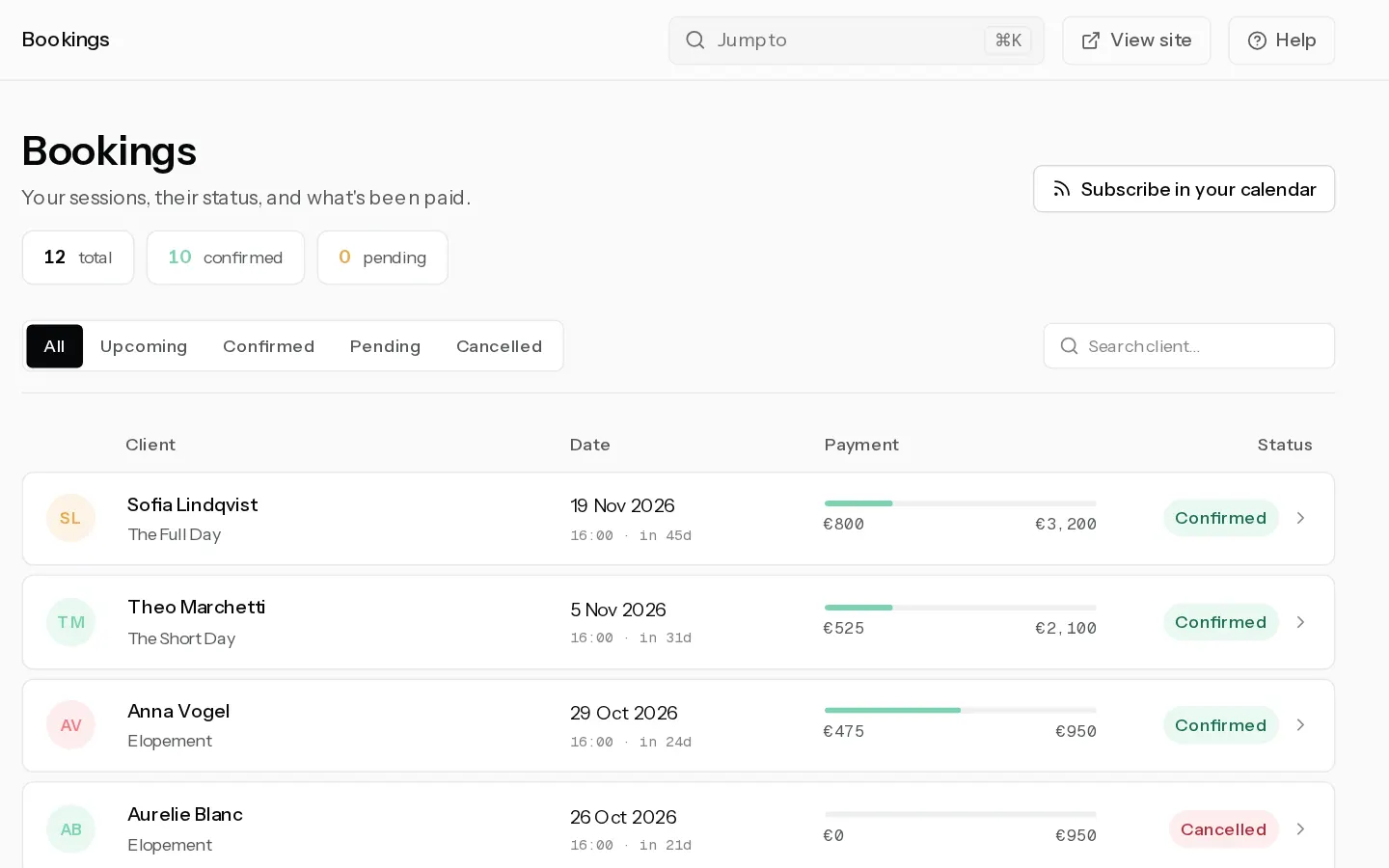
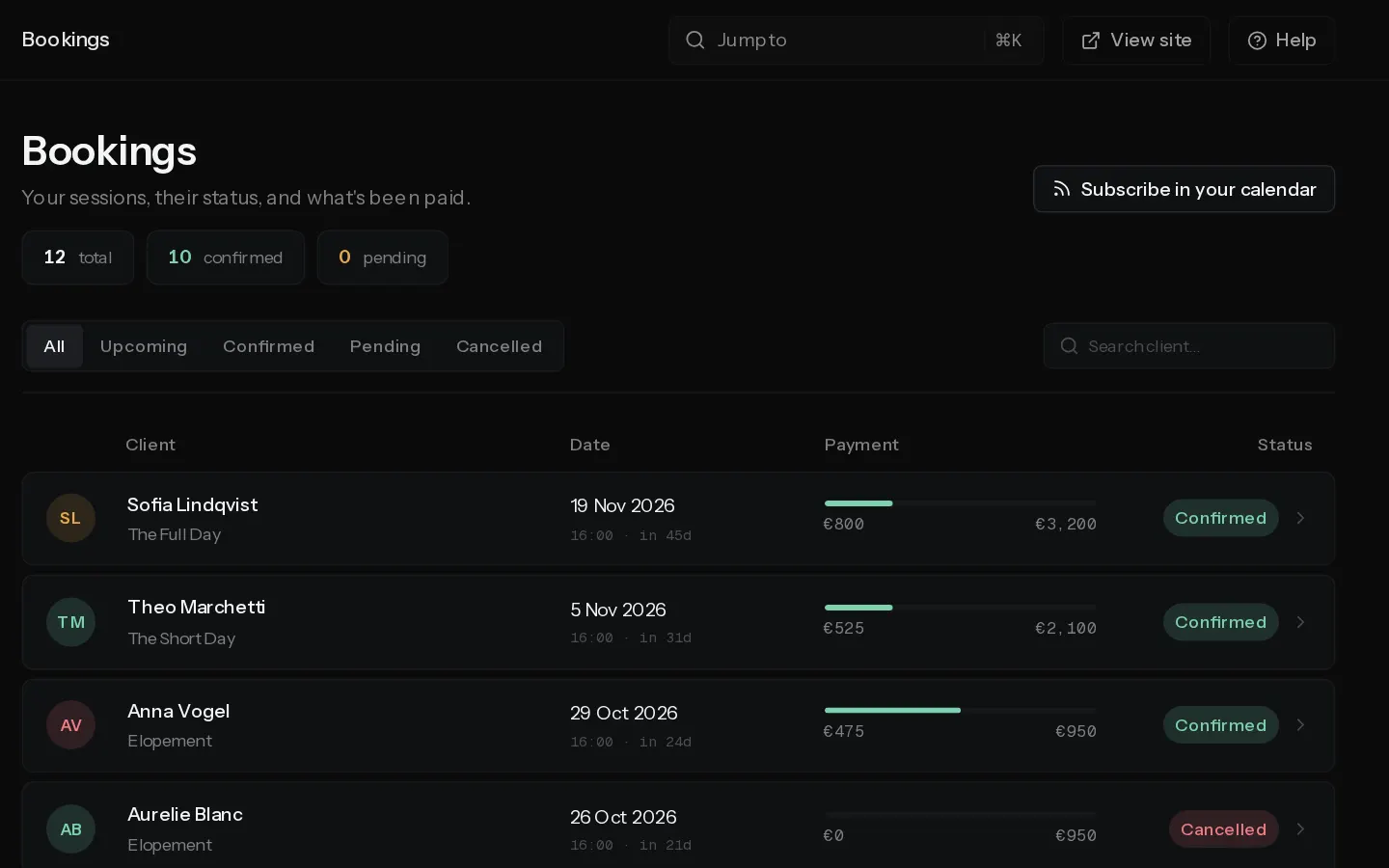
Your client pays a deposit when they book, and the rest before the session. Both go through Stripe straight to your own Stripe account.
Set the deposit
Each package has its own deposit, set under Deposit in the package. See Create a bookable package.
- Full price: the whole price is charged at booking and nothing is left to pay.
- Fixed amount: a set amount, no more than the price.
- Percentage: a share of the price, from 0 to 100.
Prices include VAT. If you set up VAT in Stripe, it comes out of the price, so your client pays the same amount either way. On Starter, Xposure takes a 10% platform fee on deposits and balances. On Pro and Studio it takes none.
A booking is only confirmed once the deposit is paid. A deposit of 0% confirms it with nothing charged.
Get the balance paid
- Your client's confirmation email carries a pay link for the balance.
- A week before the session, while a balance is open, your client gets one reminder email with the pay link. A booking made less than a week ahead gets it about a day after it is confirmed, if the session is still ahead.
- To send the link yourself, open the booking in Bookings and select Copy pay link on the Payment card. Your client pays without signing in.
The balance is paid in one go. The Payment card shows Total, Deposit, Paid and Balance, and lists each payment with any VAT in it.
Record a payment made outside Stripe
- Open the booking and select Record payment on the Payment card.
- Check the Amount. It starts at the balance due.
- Pick the Method: Bank transfer, Cash or Other, and the date in Received on. Add a Note if you like, such as an invoice number.
- Select Record payment. Your client gets an email confirming it.
You can only record a payment on a confirmed booking, and not more than the balance due. No platform fee is taken on it. Typed the wrong amount? Select Void beside it. It stays in the list, struck through, and the balance goes back up.
Refunds and cancellations
Select Cancel on the booking to cancel it. Your client gets an email, the pay link stops working and the event leaves your Google Calendar.
Your client can also cancel from their client portal. You both get an email, and nothing is refunded.
Important: Cancelling refunds nothing. Refunds, payouts and disputes are handled in your Stripe dashboard. A refund you make there shows in the booking's payment history and raises the balance due again. Open it from Manage on Stripe in Settings, Integrations.
See also: Charge VAT on what you sell, Get paid out and refund a client.
Did not find your answer?
Tell us what you are trying to do. Support replies by email.