Set your availability
Choose the hours clients can book, the notice you need, how far ahead they can book, your time zone and your days off.
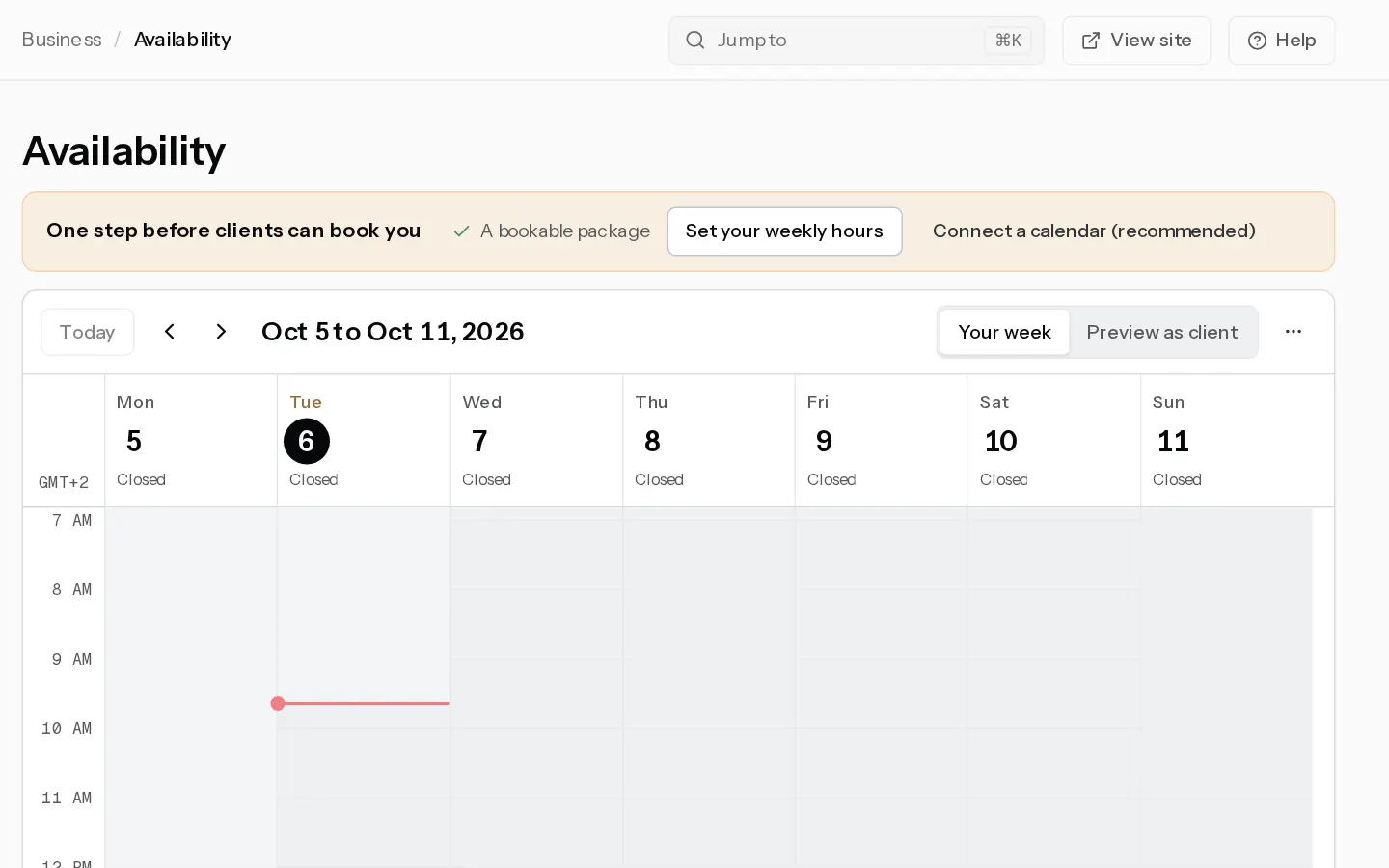
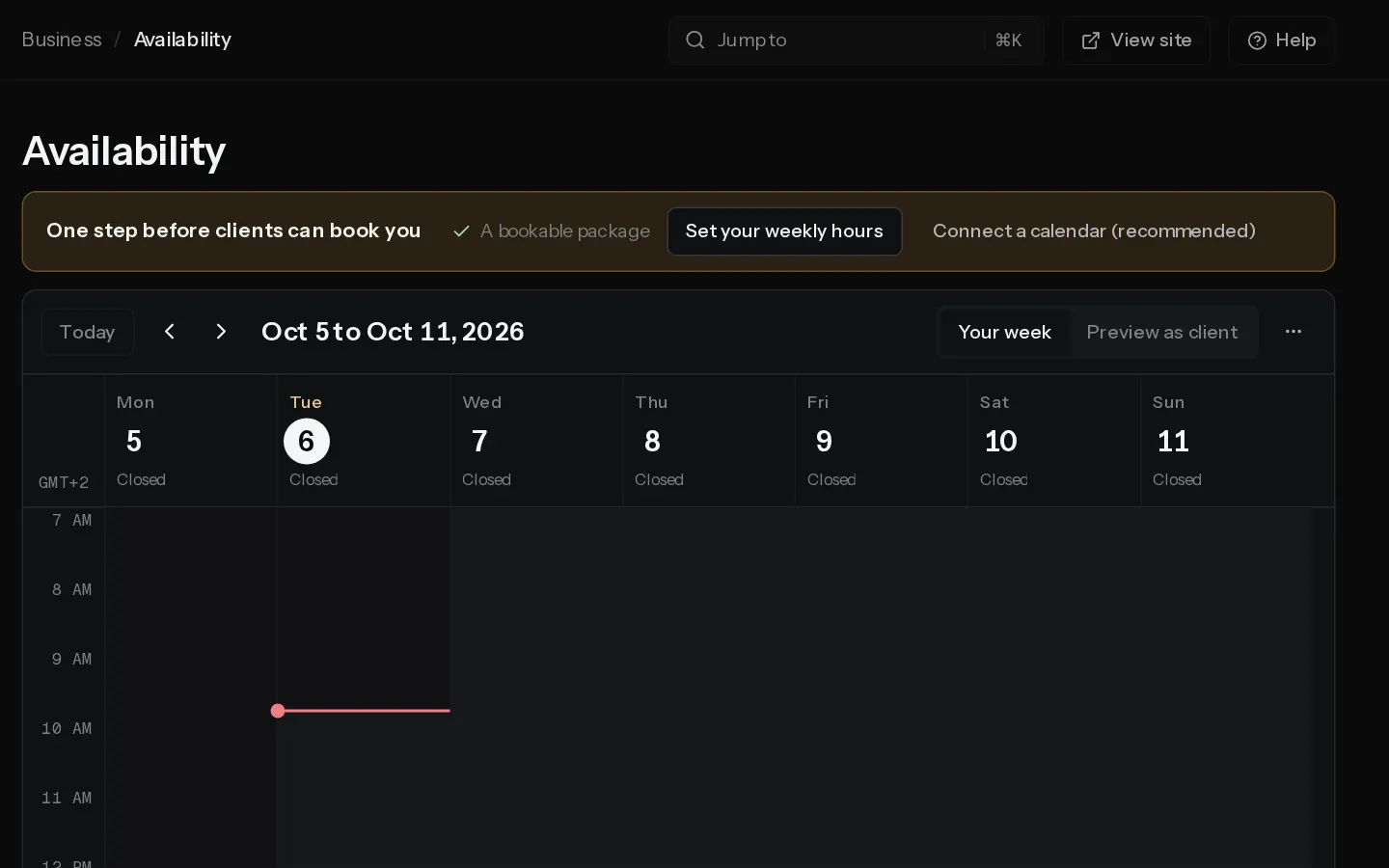
Clients only see start times inside your weekly hours, clear of your bookings, your time off and any connected calendar.
Set your weekly hours
- Open Availability and select Weekly hours.
- Switch on each day you work and set its times. On an empty week, Open Monday to Friday, 9 to 5 fills it in for you.
- To split a day, select the plus icon beside it and set a second range.
- To reuse a day, select its copy icon, pick Weekdays, Every day or single days, then Copy hours.
- Select Save hours.
The whole session has to fit inside a range. With hours of 9 to 5 and a 2-hour package, the last start time is 15:00. Buffers may run outside your hours, but not into a booking or time off.
Set the scheduling rules
- Select the time zone button in the toolbar. It shows your zone, such as Europe/Brussels.
- Set Times in to your time zone. Clients see times in it.
- Pick how often a start time is offered in Start times every, from 15 minutes to 2 hours. The default is 30 minutes.
- Set Minimum notice in hours. The default is 24.
- Set Book up to in days ahead, from 1 to 730. The default is 90.
- Select Save rules.
The rules apply to every package. Buffers are set per package in Create a bookable package.
Block days off
- Select Time off, then Add time off. You can also select a day's heading on the calendar, or drag across the hours you want.
- Pick the First day and Last day. Tick Only part of the day to set times instead.
- Add a Note if you like, such as "Holiday", and select Add time off.
Clients cannot book anything that touches it. Bookings you already have stay, so move or cancel those in Bookings.
Check the result
Select Preview as client and pick a package. You see the start times a client gets, day by day.
Note: Events in your own calendar can block times too. See Connect Google Calendar and Import another calendar.
Did not find your answer?
Tell us what you are trying to do. Support replies by email.