Reschedule or cancel a booking
Move a session to a new time or cancel it, and know what your client, your calendar and the payments do next.
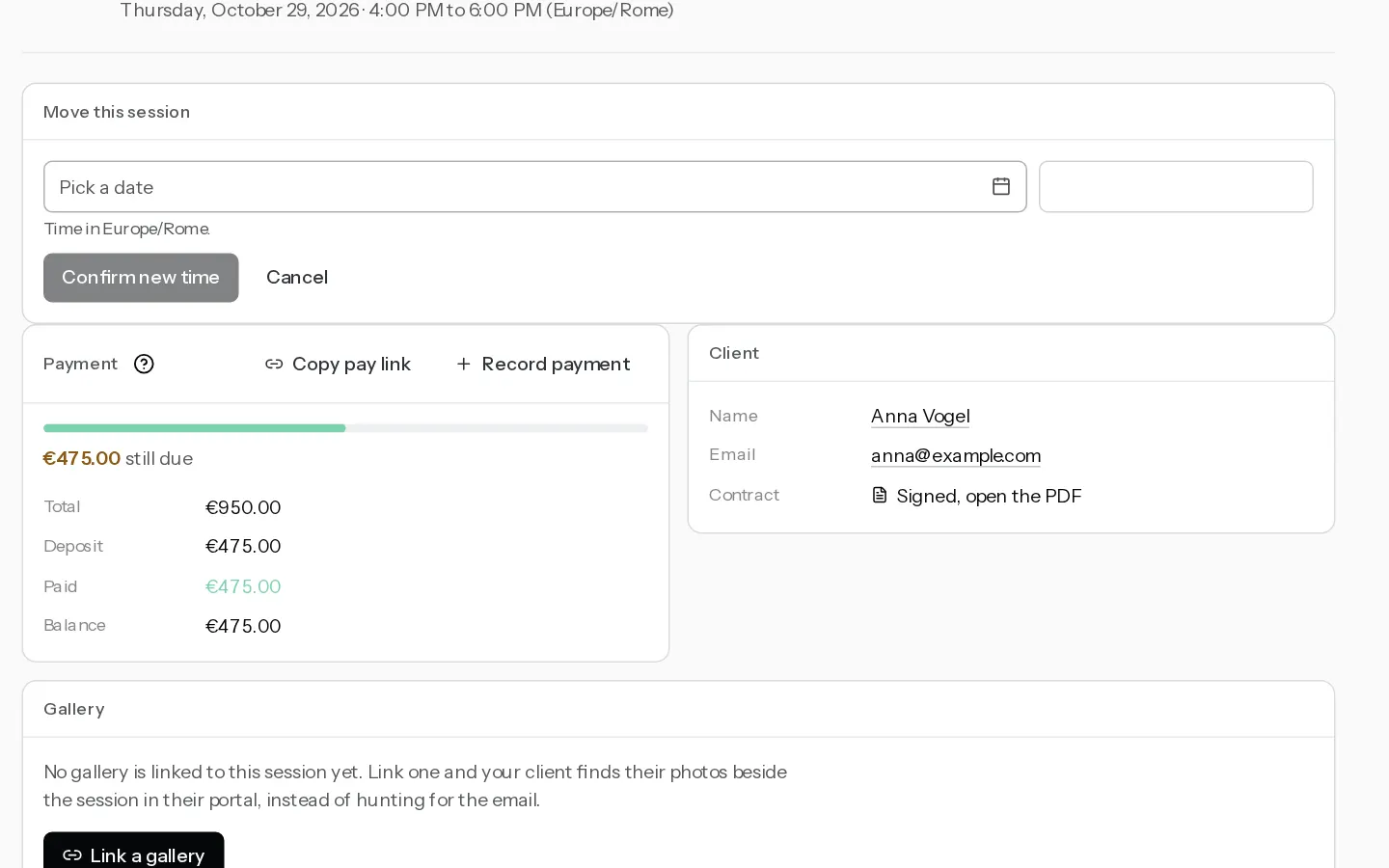
You move or cancel a session from its booking page. Both only appear while the session is still ahead and not already cancelled.
Reschedule a session
- Open the booking in Bookings and select Reschedule.
- Under Move this session, pick the date, then the time. The time is in the booking's time zone, shown under the field.
- Select Confirm new time.
The session keeps its length and its buffers. The only check is overlap: if the photographer has another booking in that stretch, buffers included, you see "That time overlaps another booking". A past time is refused with "Pick a future time". Working hours, time off and Google busy times are not checked.
What follows:
- On a confirmed booking, your client gets an email with the new time, the old one and a link to their portal. In a studio, the assigned photographer gets one too, unless that is the owner. A booking still waiting for its deposit sends nothing: the confirmation carries the new time.
- A confirmed booking's Google Calendar event is deleted and added again at the new time. See Connect Google Calendar.
- The calendar file your client already saved does not change. Their portal and the next Add to calendar show the new time.
- Questionnaires timed from the session date follow the new date. See Send questionnaires to your clients.
- Payments stay as they are. A signed contract keeps the old date.
Your client cannot reschedule from their portal. They ask you. The built-in agreement allows one reschedule with 7 days' notice, which Xposure does not enforce. See Write the contract clients sign.
Cancel a booking
- On the booking, select Cancel.
- In the dialog, select Cancel booking. Keep booking closes it.
The slot is free again, the pay link stops working and the event leaves your Google Calendar. Your client and the account owner get a cancellation email, and so does the assigned photographer, in a studio. Your client can also cancel from their portal.
Important: Cancelling refunds nothing. When you cancel, the email tells your client that any deposit refund is handled by you. Refund in your Stripe dashboard. See Take deposits and collect the balance.
In a studio, Reschedule needs the Editor role or above. Cancel needs Admin. See Choose roles and manage seats.
Did not find your answer?
Tell us what you are trying to do. Support replies by email.