Find your way around the dashboard
Know what each part of the sidebar holds, jump to any page or gallery from the keyboard, and open your site or these guides from the top bar.
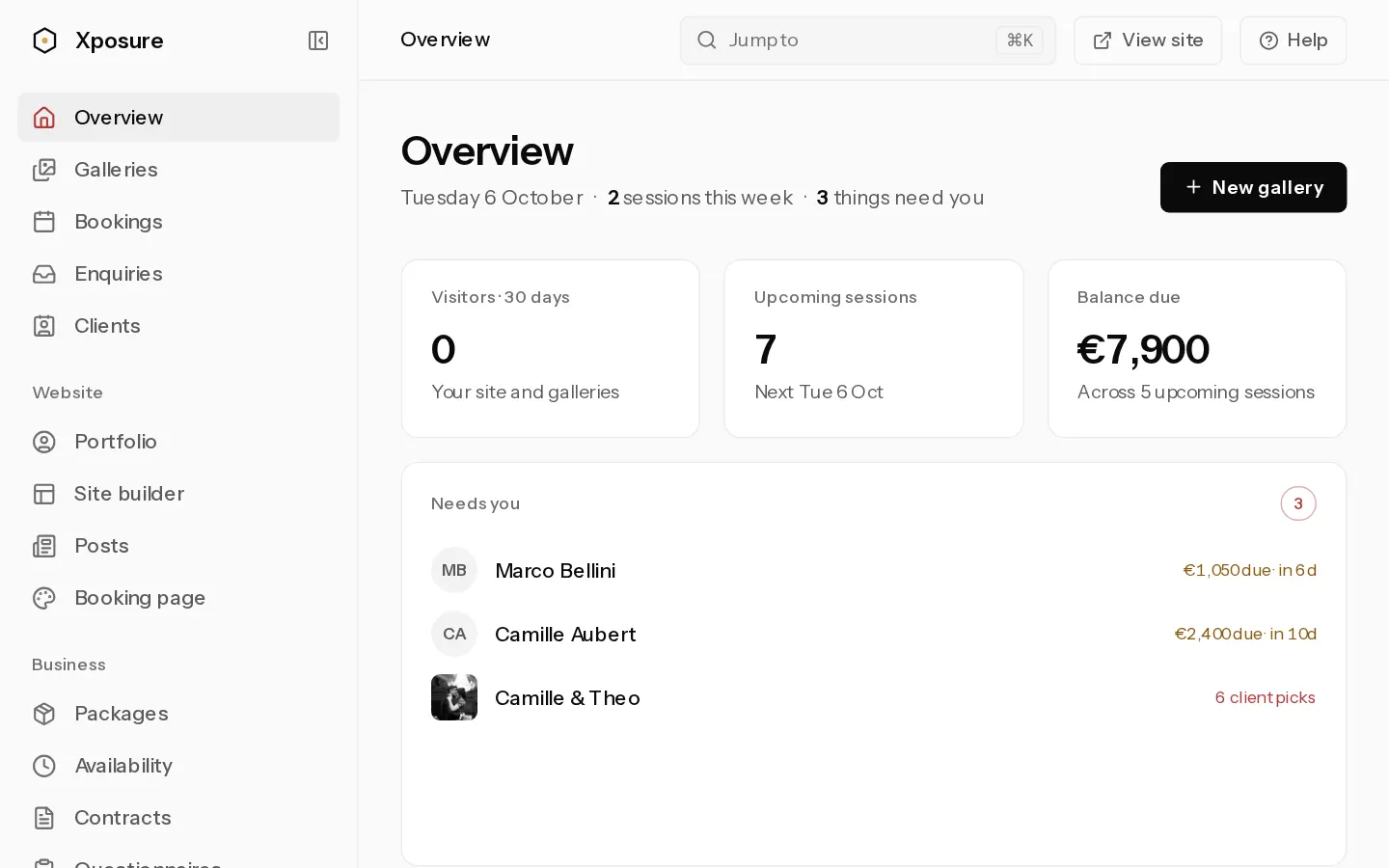
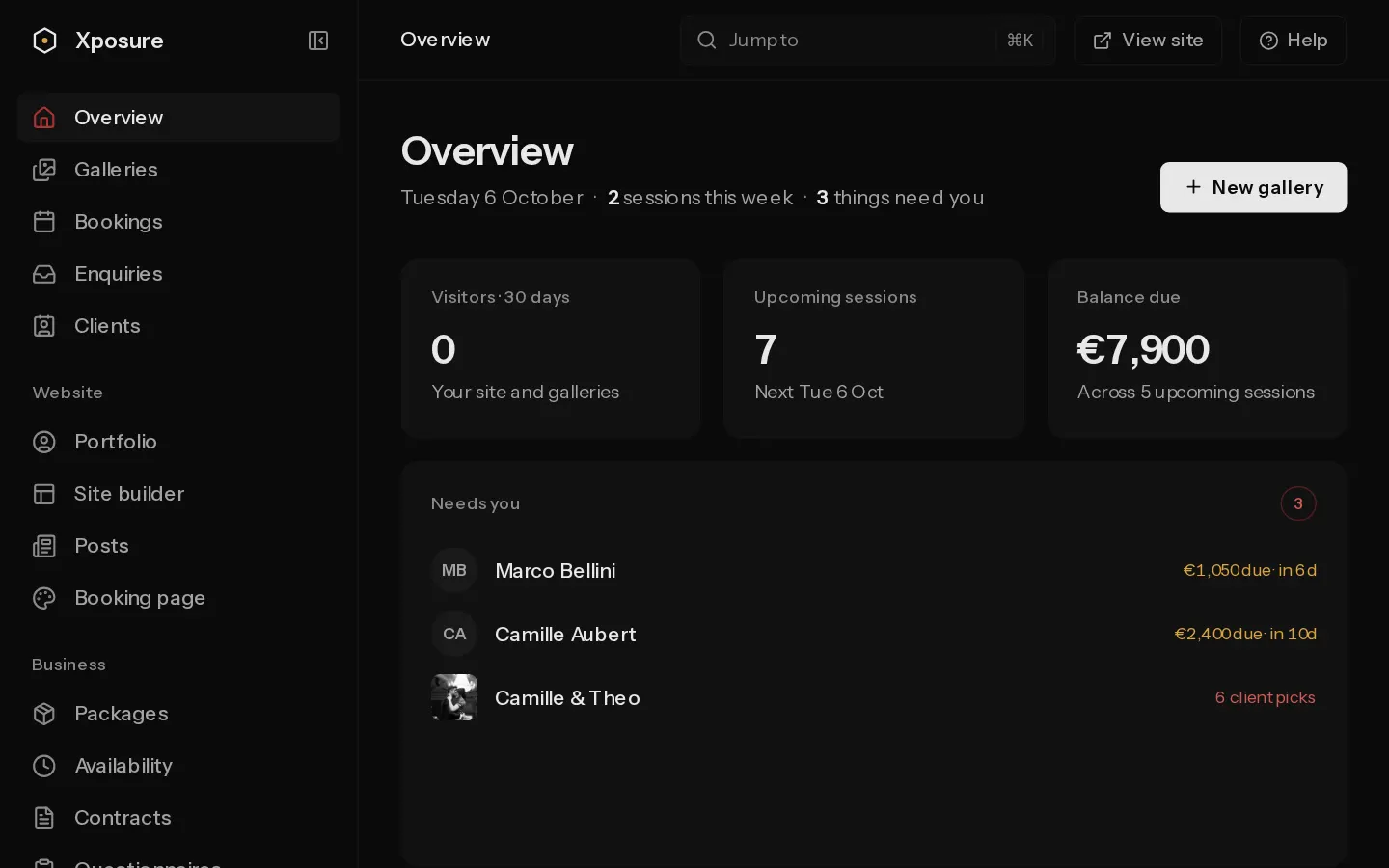
The sidebar on the left holds every area of Xposure. The top bar above each page gets you anywhere else in one step.
The sidebar
- Overview, Galleries, Bookings, Enquiries and Clients sit at the top. Galleries holds your client galleries and portfolio albums.
- Website: Portfolio, Site builder, Posts and Booking page.
- Business: Packages, Availability, Contracts, Questionnaires and Prints.
- Insights: Exposure for your traffic, and Booking insights.
- Team: Members, and Activity on a team.
On a new account, Bookings, Clients and the other booking and team pages stay hidden. They appear once you upload your first photo or create a package, if you picked bookings in the first setup questions, or on the Studio plan. Prints shows only where print sales are available.
Select your name at the bottom of the sidebar for Settings, View your site, the Theme and Log out. The arrow button at the top folds the sidebar to icons. On a phone, the menu button in the top bar opens it.
Jump to a page or gallery
- Select Jump to in the top bar, or press Ctrl+K (Cmd+K on a Mac).
- Type part of a page name or a gallery name.
- Use the arrow keys to pick a result and press Enter.
With nothing typed, the list shows your pages. Galleries appear as you type.
The top bar
- View site opens your public site in a new tab.
- Help opens these guides in a new tab.
If you work in a studio
When someone adds you to their team, the box at the top of the sidebar switches between Personal, your own account, and their studio. Inside a studio you see what your role allows:
| Role | Sees |
|---|---|
| Owner and Admin | Everything |
| Editor | Everything except Portfolio, Booking page, Questionnaires, Prints, the Insights pages and Activity |
| Viewer | As Editor, without Site builder and Posts |
| Photographer | Overview, Galleries, Bookings, Availability and Members |
Inside a studio, Settings and View site are hidden. They belong to your own account.
See also: Choose roles and manage seats.
Did not find your answer?
Tell us what you are trying to do. Support replies by email.