Send the gallery to your client
Email your client the gallery link and PIN from Xposure, or copy the link to share it yourself.
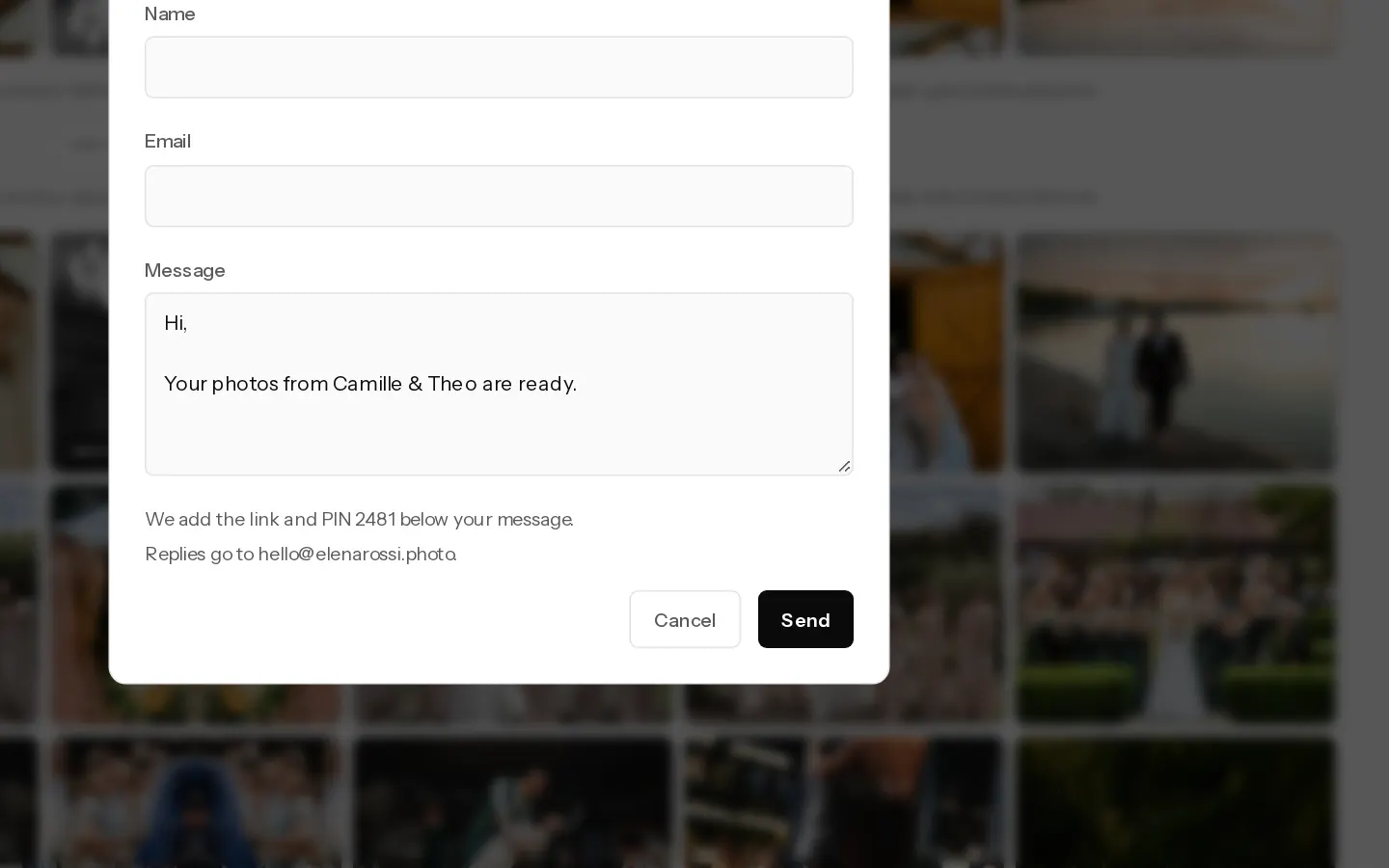
Xposure emails your client the gallery link and client PIN under a message from you. The button in the email opens the gallery without typing the PIN.
Client galleries are available on Starter, Pro and Studio.
Send the invite
- Open the gallery and select Send to client. It is on the Photos tab next to the gallery link, and in Settings under Share.
- Check Name and Email. If the gallery is linked to a booking, they are filled in from it.
- Edit Message if you like. It starts as "Hi Anna, Your photos from (gallery name) are ready."
- Select Send. If the gallery is still a draft, the button reads Make live and send and sending makes it live.
The dialog lists what Xposure adds below your message: the link, the PIN and, if the gallery has one, its closing date. It also shows the address your client's replies go to.
If the gallery has a closing date, the people you sent it to, and visitors who gave their email in the gallery, get a reminder email 7 days and 1 day before it closes.
Note: You cannot send until your email address is confirmed and the gallery has a client PIN. A gallery that has already closed needs a later closing date first. See Set when a gallery closes.
Send it when the gallery opens
If the gallery opens on a later date, the dialog shows Send it when the gallery opens on (the date). Tick it and select Schedule. Nothing is sent now. Xposure sends the invite within a few minutes of the gallery opening. If you move the opening date, the invite moves with it. A paused gallery keeps it until you make it live again.
The list under Share shows it as "Sends to Anna Rossi when the gallery opens" until it goes out. Don't send cancels it. If the email cannot be sent when the gallery opens, or mail to the address has bounced or been marked as spam, the list says so. Select Send again to try once more.
See and manage what you sent
Each send is listed under the link in Share, for example "Sent to Anna Rossi on 4 October".
- Send again opens the dialog with that person's name and email.
- Stop this link ends that email's link and signs out anyone who opened the gallery with it. They can still get in with the PIN, so change the PIN as well if the email went to the wrong person.
Changing the client PIN stops every invite link already sent. The list then marks them Link stopped working. Send them again so your client has the new PIN. Invites still waiting for the gallery to open are not affected: they carry the new PIN when they go out.
Share the link yourself
Select the gallery link on the Photos tab or in Share to copy it. Send the link and the PIN together. The PIN is shown next to the link on the Photos tab.
There is a daily limit on invite emails. If you reach it, the dialog says so and you can send again the next day.
Related: Set a gallery PIN.
Did not find your answer?
Tell us what you are trying to do. Support replies by email.