Help a client who did not get your email
Check the address and spam folder, see when mail to a client bounced, and get the gallery, contract or pay link to them another way.
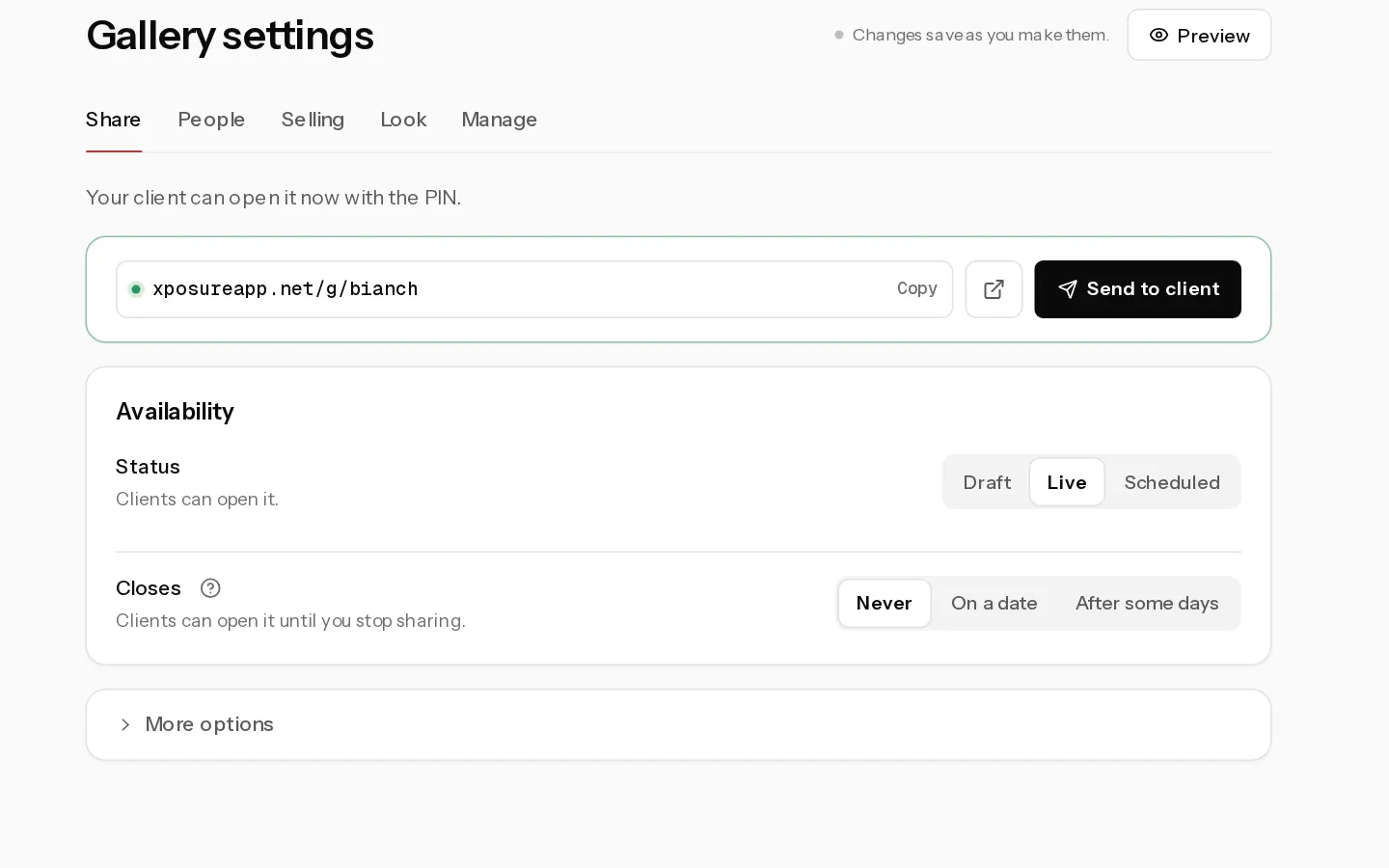
Xposure emails your client for you: the gallery invite, closing reminders, the booking confirmation, questionnaires, shared documents and the balance reminder. When one does not arrive, most of what it carried can reach your client another way.
Check the basics
- Ask your client to look in their spam or junk folder, and to search for your name. The gallery invite's subject starts with the gallery name.
- Check the address you sent to. It shows on the booking and on the client's page, and Send again in the gallery shows the address an invite went to. A client's email cannot be changed in Xposure, because it is how they sign in to their portal.
Replies to gallery emails go to the Email for clients in the Business details tab of Profile and brand, or to your account email when that is empty.
When mail to an address bounced
When a gallery email to an address bounces for good, or your client marks one as spam, Xposure stops sending gallery emails to it. You cannot lift this from your dashboard.
- Send to client shows "We cannot send to this address. Mail to it bounced or was marked as spam."
- An invite waiting for the gallery to open is listed under Share with "Mail to this address bounced or was marked as spam". "The email could not be sent" means the send itself failed. Select Send again to try once more.
- Closing reminders skip the address.
An invite already sent stays listed as sent, even if it bounced afterwards. Ask your client for another address, or send them the gallery link and PIN yourself.
Get it to your client another way
- Gallery invite: in the gallery, open Settings, then Share, and select Send again. Or copy the gallery link and send it with the PIN. See Send the gallery to your client.
- Booking confirmation and documents: your client opens the client portal, types their email and selects Send my link. The portal has their sessions, signed contract, documents and pay button. The sign-in link goes to the same address, so this helps only when the address is right and the email went to spam.
- Pay link and contract: open the booking and select Copy pay link, shown on a card booking with money due, or Copy link under Contract not signed yet. Send the link yourself.
- Balance reminder: it goes once, a week before the session. The booking says when it went. Use Copy pay link to send the link again.
- Questionnaire: a session gets each questionnaire once, and it cannot be sent again. Ask your client to search for "sent you a questionnaire". The link in that email keeps working.
Note: Gallery invites have a daily limit per account. When you reach it, the dialog says so and you can send again the next day.
Did not find your answer?
Tell us what you are trying to do. Support replies by email.