Set a gallery PIN
Give your client a PIN to open the gallery, and optionally a second PIN for guests who only look.
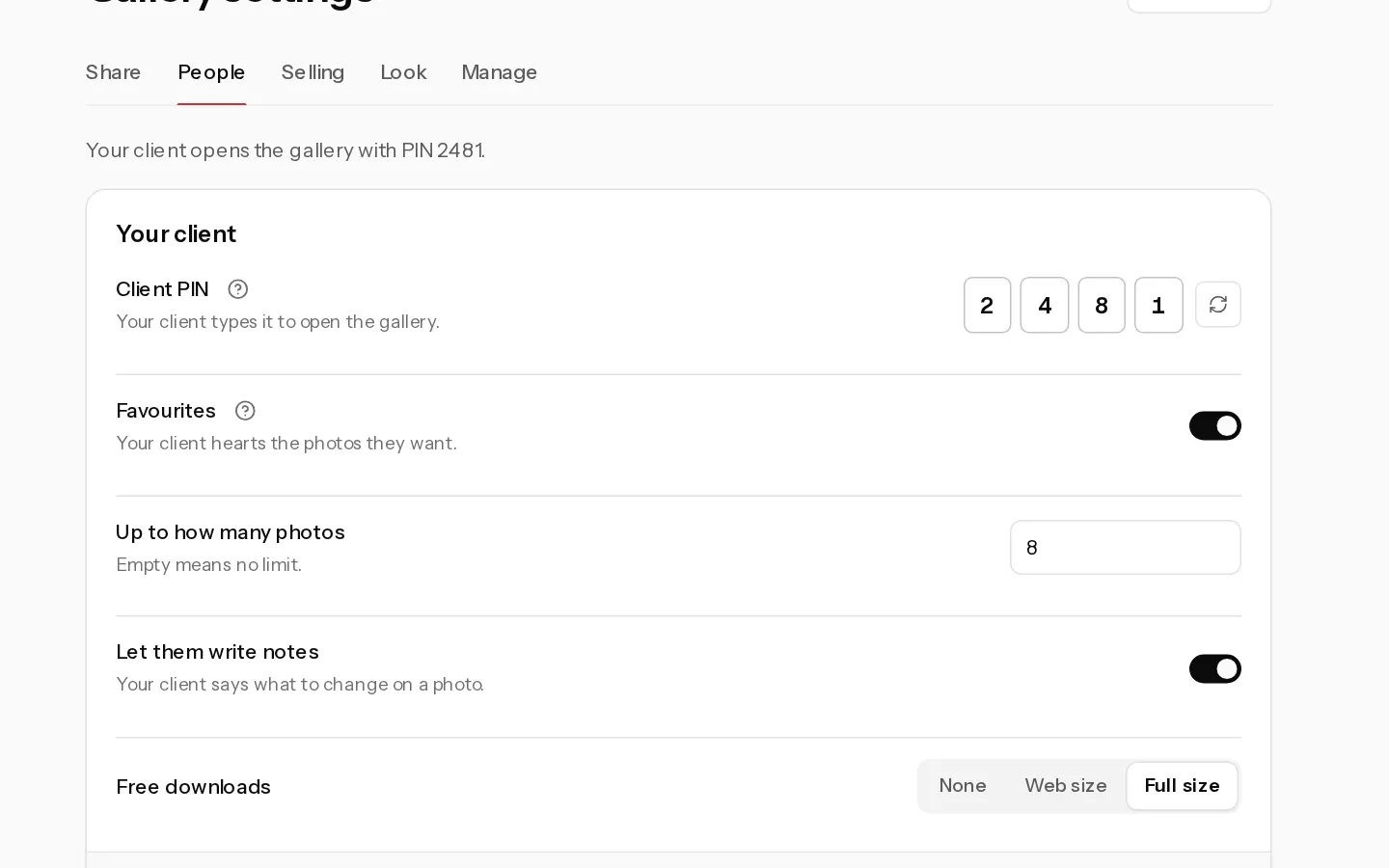
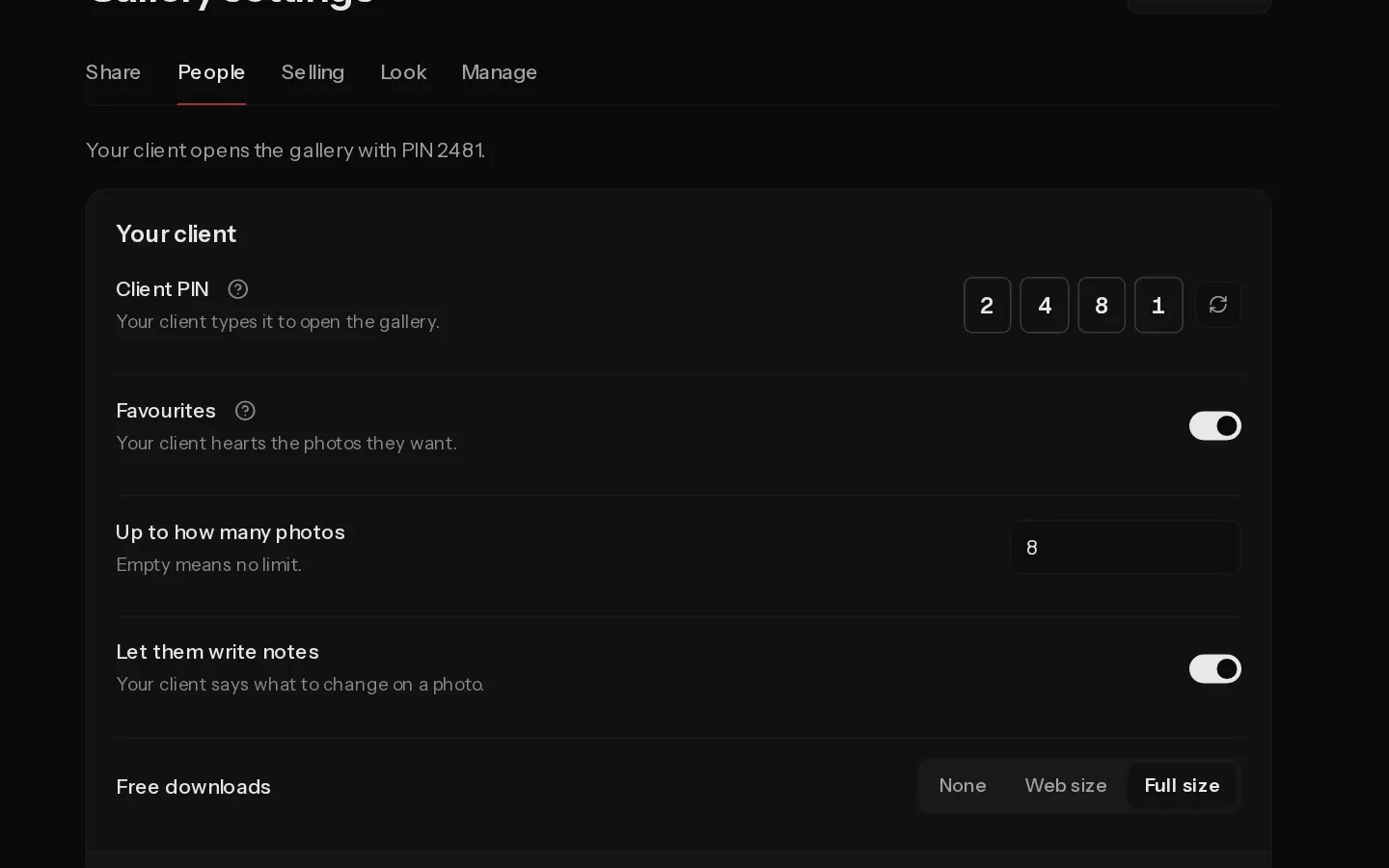
Every client gallery has a 4-digit client PIN. Your client types it to open the gallery, pick favourites and use their downloads. A guest PIN is optional and lets family and friends look without touching your client's favourites.
PINs are available on Starter, Pro and Studio.
Set or change the client PIN
- Open the gallery and select Settings, then the People tab.
- Under Your client, type 4 digits in Client PIN. It saves as soon as the fourth digit is in.
- To get a random PIN instead, select the refresh button next to the field.
The People tab shows the current PIN at the top: "Your client opens the gallery with PIN 1234". The Photos tab shows it too, next to the gallery link.
Important: Changing the client PIN signs out everyone who has the gallery open, client and guests, and ends the invite links you already emailed. Send the gallery again with Send again in the Share tab.
A client gallery always has a client PIN, so you cannot clear it. To take the gallery offline, use Stop sharing this gallery under More options in the Share tab.
Add a guest PIN
- In People, go to Guests and choose Guest PIN under Guests get in with. A PIN is created for you.
- Type 4 digits to change it, or select the refresh button for a new one. It has to differ from the client PIN.
- Under Free downloads, choose what guests can download: None, Web size or Full size.
Guests see the photos and can use the downloads you allow. They cannot pick favourites or write notes. Your client finds the guest PIN in the gallery's share dialog, so they can pass it on themselves.
Changing the guest PIN signs out guests only. Your client stays in.
Remove the guest PIN
In People, choose Off under Guests get in with. The guest PIN is deleted and guests are signed out. Choosing Their email or Just the link also removes it.
Did not find your answer?
Tell us what you are trying to do. Support replies by email.