Build a gallery layout with blocks
Lay out a gallery in sections and blocks, style each section, preview it at phone width and save it for your client.
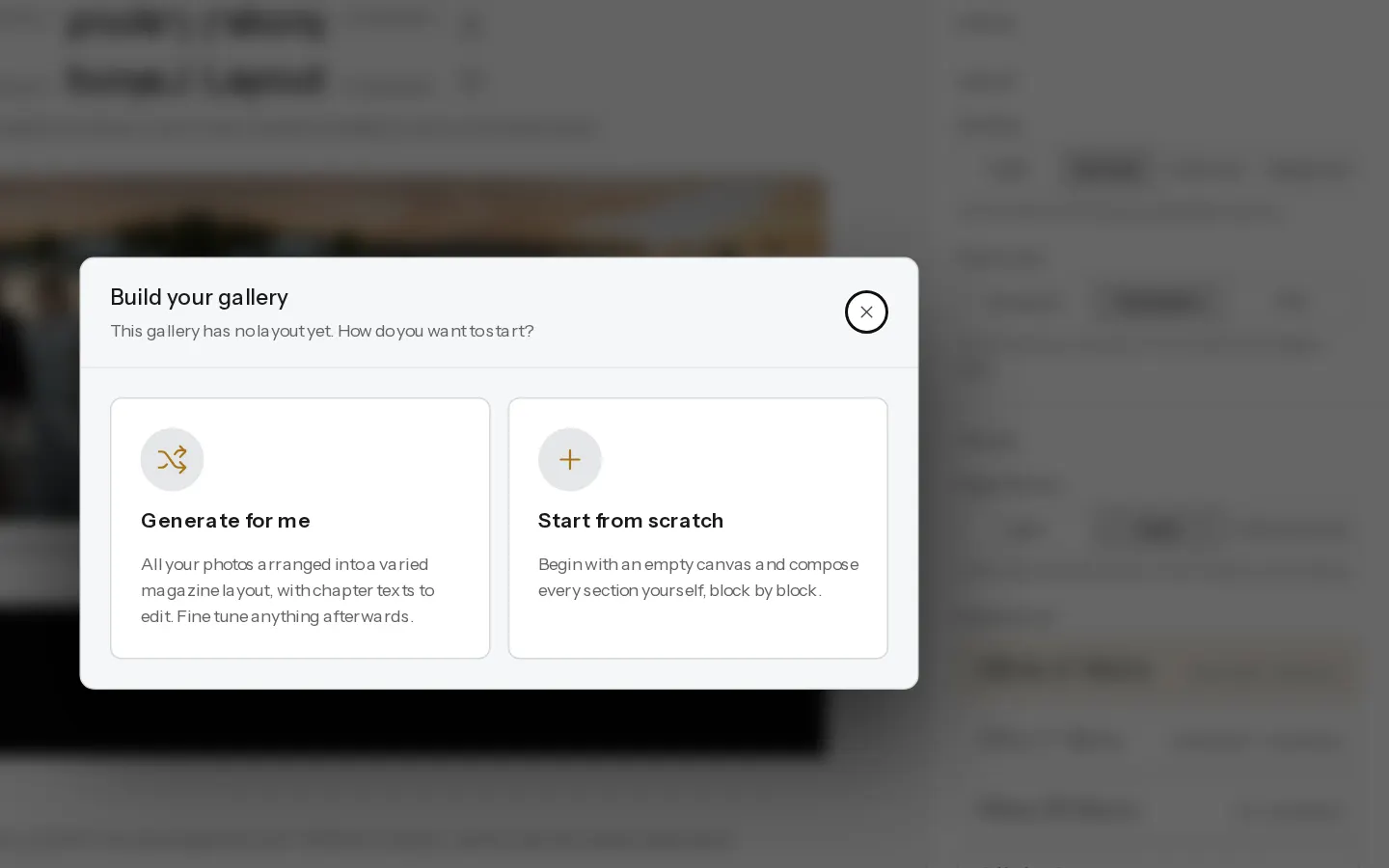
The gallery builder lays a gallery out as sections, each with one to three blocks side by side. What you see while you build is the gallery your client opens.
Start a layout
- Open the gallery and select Edit layout.
- While the gallery has no layout, Build your gallery asks how to start. Choose Generate for me to have every photo arranged for you, or Start from scratch for an empty canvas. The same choice stays on the canvas as Generate a layout for me and Add your first section.
Later, Start a layout… in the side panel offers Shuffle and your saved templates.
Without any sections, visitors see the simple photo grid.
Add sections and blocks
- Select Insert section where the section should go.
- Pick 1 col, 2 col or 3 col in the section's bar. Type a name in Section name… to make the section a chapter in the gallery's navigation.
- Select Add block in an empty slot and pick a block.
- Fill it. A photo block asks for its photos, a Collage Grid for its arrangement first. You can also drag photos from Unassigned photos below the canvas onto a slot.
The blocks sit on three shelves:
- Photographs: Single Photo, Before / After, Full-bleed Band, Collage Grid, Carousel, Masonry Grid, Two-up, Contact Sheet, Hero Banner, Photo Strip and Video.
- Words and breaks: Quote, Text, Chapter Divider and Spacer.
- Actions: Call to Action, a button to Prints and downloads, Book a session, Get in touch or A link. Until its target is set up, the button does not show in the gallery.
The Video block plays a YouTube or Vimeo link, or a film you uploaded. Visitors see it on Starter, Pro and Studio. See Add a video to a gallery.
Change and arrange
- The buttons on a block edit it, change its type or remove it. Changing the type keeps the photos the new block can hold.
- Drag a section by its handle, or use Up and Down. Duplicate and Delete are in the same bar.
- Style sets a section's Background, Spacing and Photo size. Density and Photo size in the side panel set them for the whole gallery.
- Undo and Redo sit in the header, also on Cmd or Ctrl+Z and Cmd or Ctrl+Shift+Z.
- Layout health in the side panel counts photos not placed, empty slots and photos used twice.
Preview and save
- Select Preview to see the layout as a visitor does, unsaved changes included. Pick the phone or tablet icon to see it at that width.
- Select Save layout. Empty slots save as gaps you can fill later.
On a client gallery, saving shows the layout to your client. On a portfolio album the layout stays a draft until you select Show this layout. Photos you leave out show in a "More photos" grid below it. On a phone, sections with two or three columns show two photos across.
Note: Leaving the builder with unsaved changes asks first. Changes you leave behind are lost.
To reuse the shape on another gallery, open Start a layout…, name it under Your templates and select Save this layout. A template keeps the sections and blocks, not the photos.
Related: Arrange your gallery.
Did not find your answer?
Tell us what you are trying to do. Support replies by email.