Arrange your gallery
Choose the cover, split a client gallery into named sets, or build your own layout in the gallery builder.
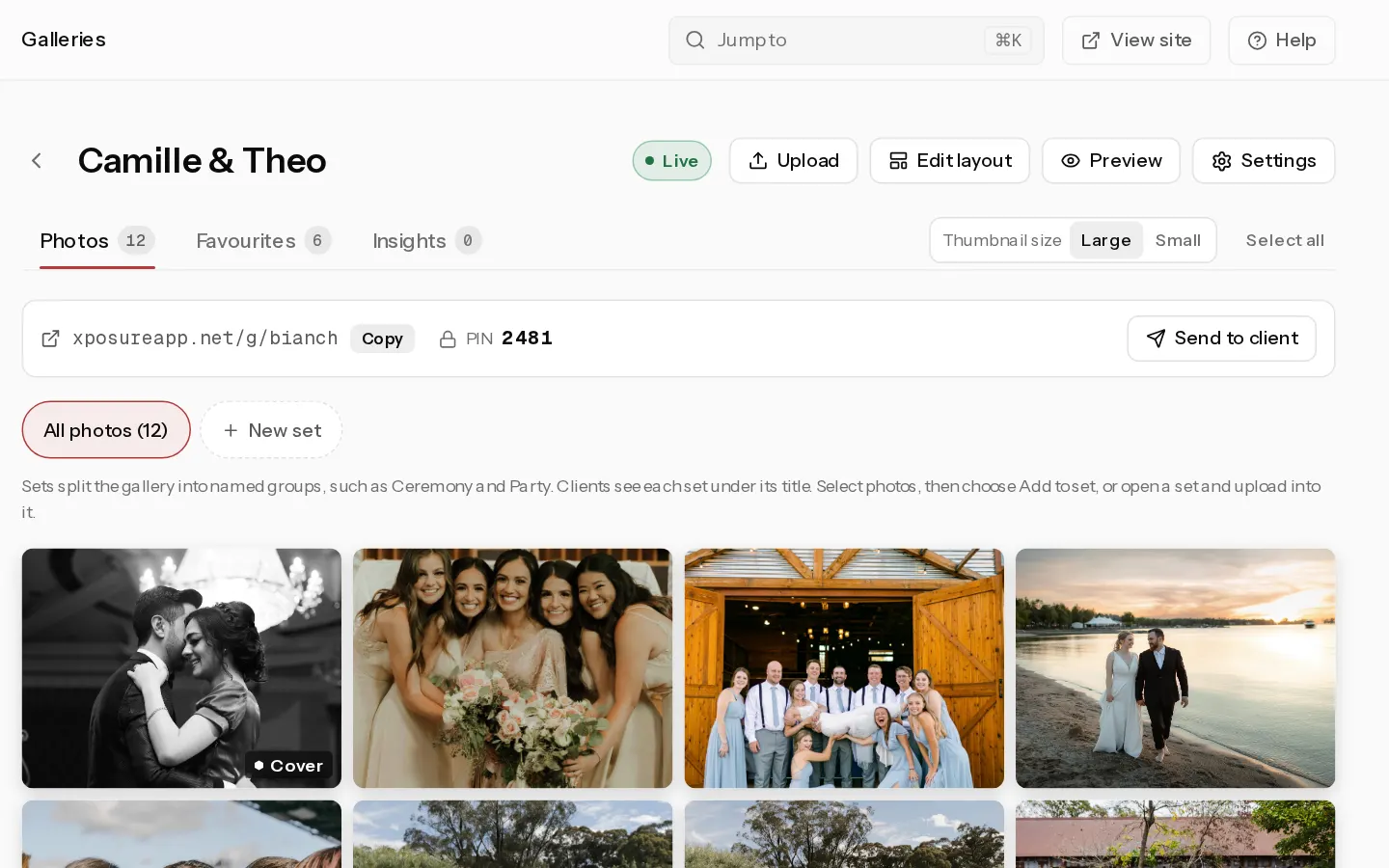
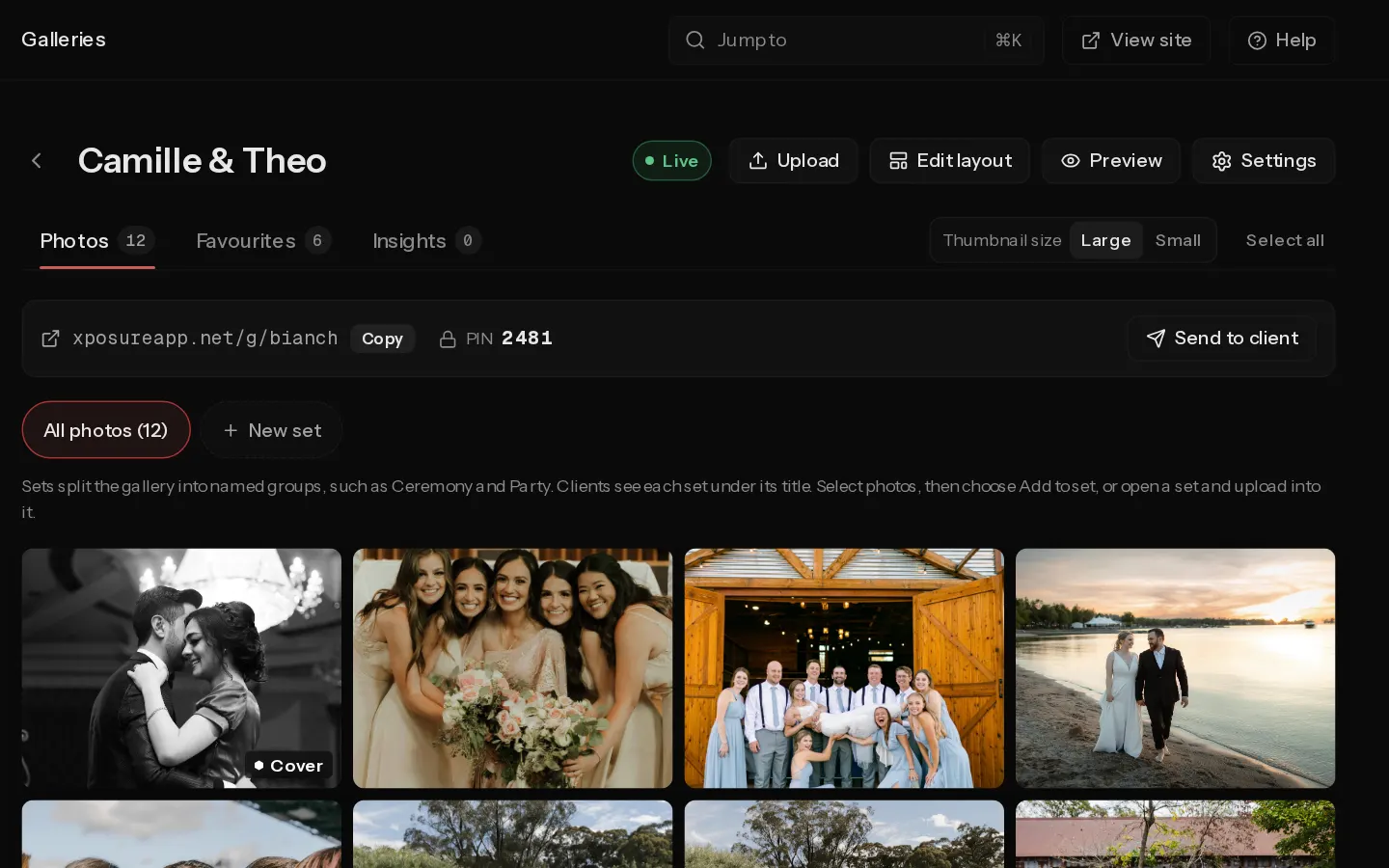
A gallery opens on its cover, then shows the photos in a simple grid in the order you uploaded them. Sets split that grid into named groups. The builder lets you lay out every photo yourself.
Choose the cover
- Open the gallery and select Settings, then the Look tab.
- Under Cover, select Choose a cover and pick a photo. Without one, the first photo is used.
- On a client gallery, click the cover photo under Focal point where the crop should centre, and pick a Cover style: Full screen, Split, Framed or Title first.
You can also select one photo on the Photos tab and choose Set cover. Show the cover before the PIN is on for new galleries. Turn it off to show a blurred cover until the PIN is in.
Split a client gallery into sets
Sets such as Ceremony and Party appear to your client as titled groups. They can also download one or more sets.
- On the Photos tab, select New set, type a name and press Enter.
- Select photos with the tick on each thumbnail, then choose Add to set and pick the set.
- To upload straight into a set, open it in the strip above the photos, then upload.
The ... button on a set opens Rename, Move left, Move right and Delete set. Photos in no set show under No set, and your client sees them after the sets. Sets are for client galleries, and only the account owner can make them.
Build your own layout
- Open the gallery and select Edit layout.
- Select Add your first section, or Generate a layout for me to have one made from your photos.
- In each section, select Add block and pick a block, such as Hero Banner, Collage Grid, Text or Video. Drag photos from Unassigned photos onto the slots.
- Select Preview to see the gallery as a visitor does, then Save layout.
On a client gallery, saving shows the layout to your client. On a portfolio album the layout stays a draft until you select Show this layout. Photos you leave unassigned show in a "More photos" grid below the layout.
Note: Sets show in the builder as sections. Adding a section of your own there makes the gallery a custom layout, and from then on you change it in the builder only.
To drop a layout, open Settings, Look and select Back to the simple grid. Your layout is kept as a draft.
Did not find your answer?
Tell us what you are trying to do. Support replies by email.