Manage how you sign in
Connect Google, set or change your password and sign out every device from Settings, Security.
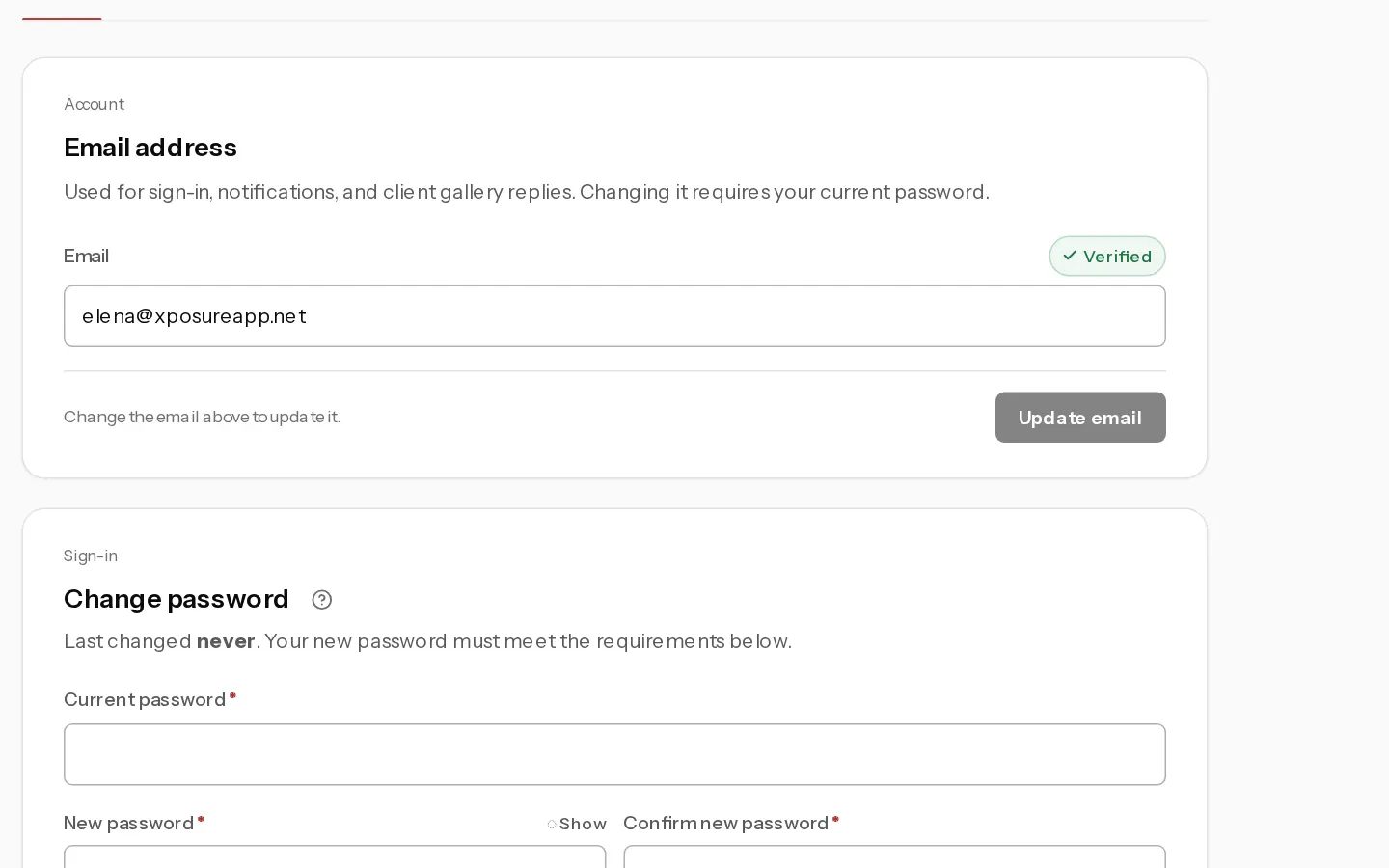
Your sign-in options sit on Settings, Security. You can use a password, Google, or both.
Sign in with Google
The Google card shows Google connected or Google not connected. It has no button. To connect it, sign out and choose Continue with Google with a Google account that uses your Xposure email address. Your account links on that first sign-in.
Settings has no way to disconnect Google.
With two-factor on, Google sign-in still asks for your 6-digit code, and it does not link your account. The card can then read Google not connected while Google sign-in works. See Turn on two-factor authentication.
Set or change your password
New passwords need 10 to 128 characters, with an uppercase letter, a lowercase letter, a number and a symbol. The checklist under the field ticks off each rule.
- In Change password, enter your Current password.
- Enter a New password and Confirm new password.
- Select Update password.
Every device is signed out, this one included. You get an email titled "Your Xposure password was changed".
If you signed up with Google, the card is titled Password and shows no form. Go to Forgot password, enter your email and select Send reset link. The link works for 15 minutes. Google sign-in keeps working after you set a password.
Note: If your email was never verified when you first used Continue with Google, linking removes the password on the account. Set a new one with Forgot password.
Sign out everywhere
Use this after losing a device or leaving yourself signed in on a shared screen.
- In Sign out everywhere, select Log out everywhere.
- Select Yes, log out everywhere.
Every browser and device is signed out, including this one. Sign in again to continue. Your client galleries stay open for clients who already entered the PIN.
Important: Your Lightroom API key keeps working unless you tick Also revoke my Lightroom API key. before you confirm. The box only appears when you have a key. The password form has the same option. A revoked key stops the plugin until you generate a new one under Settings, Integrations.
To change your sign-in address, see Change your email address.
Did not find your answer?
Tell us what you are trying to do. Support replies by email.