Turn on two-factor authentication
Add a code from an authenticator app to every sign-in and keep recovery codes for when you lose your phone.
With two-factor authentication on, signing in asks for a 6-digit code from an authenticator app on your phone, after your password or Google sign-in. Someone who learns your password still cannot get into your galleries.
You need an authenticator app, such as Google Authenticator, Microsoft Authenticator or 1Password.
Turn it on
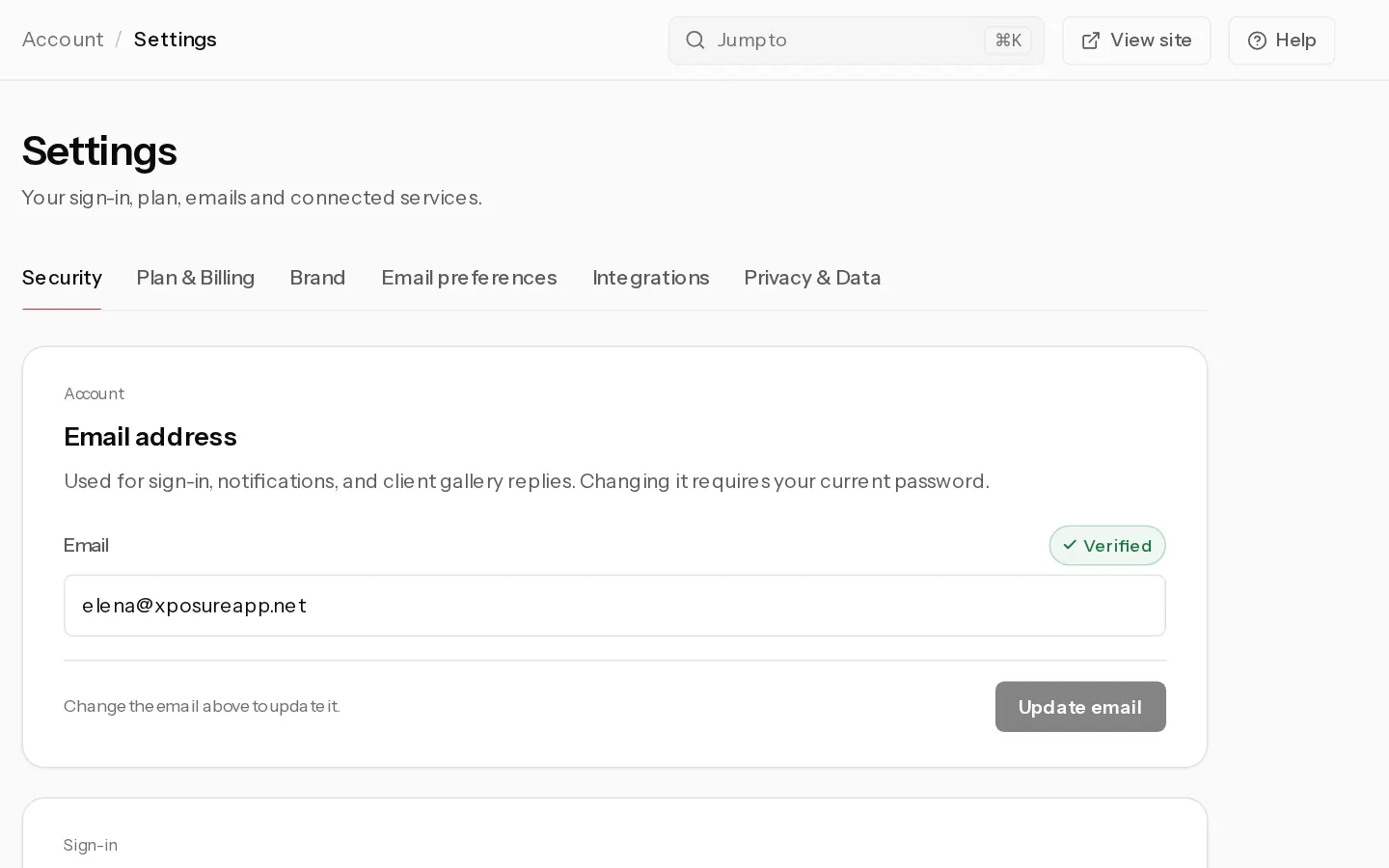
- Open Settings, Security and find Two-factor authentication.
- Select Enable two-factor.
- Scan the QR code with your authenticator app. If you cannot scan it, select Can't scan? Enter the setup key instead and type the key into the app.
- Enter the 6-digit code the app shows and select Verify & enable.
- You get 10 recovery codes. Select Download recovery codes and keep the file somewhere safe, away from your phone.
- Select I've saved my codes.
The badge now reads 2FA ENABLED. Your other devices are signed out and need the code the next time they sign in.
Important: The recovery codes are shown once. They are your only way in if you lose the authenticator app. Each code works one time.
Sign in with a recovery code
- On the Two-factor authentication screen after your password, open Verification method and choose Recovery code.
- Type one of your codes, such as
abcd-ef12-3456-7890.
Lost both the app and the codes? Email hello@xposureapp.net from your account address.
Turn it off
- In Settings, Security, select Disable 2FA.
- Enter a code from your app, or a recovery code, and select Disable 2FA.
Turning it off also signs out your other devices.
Did not find your answer?
Tell us what you are trying to do. Support replies by email.