Build your website
Pick a template, shape your homepage from sections and publish it in place of your classic portfolio.
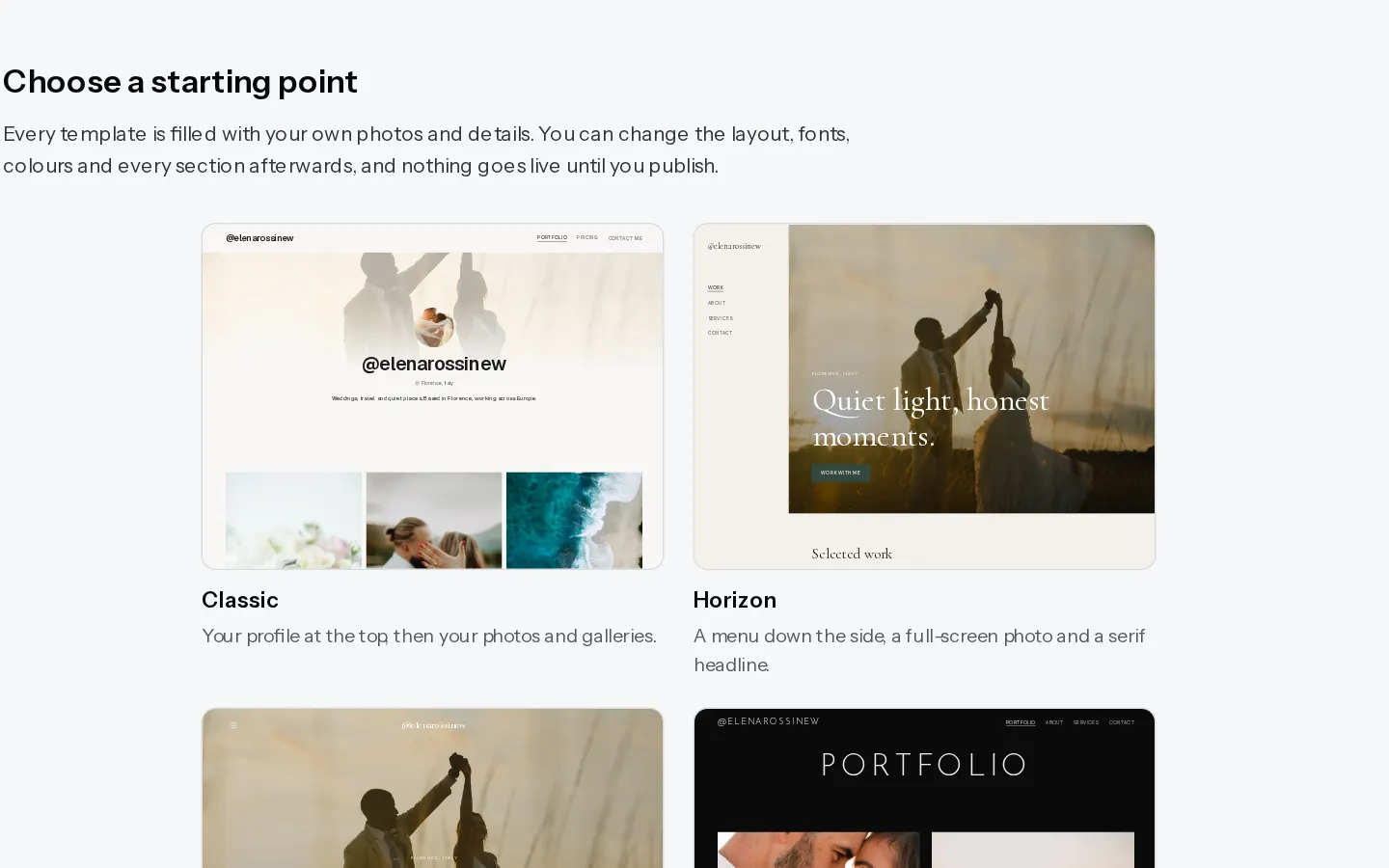
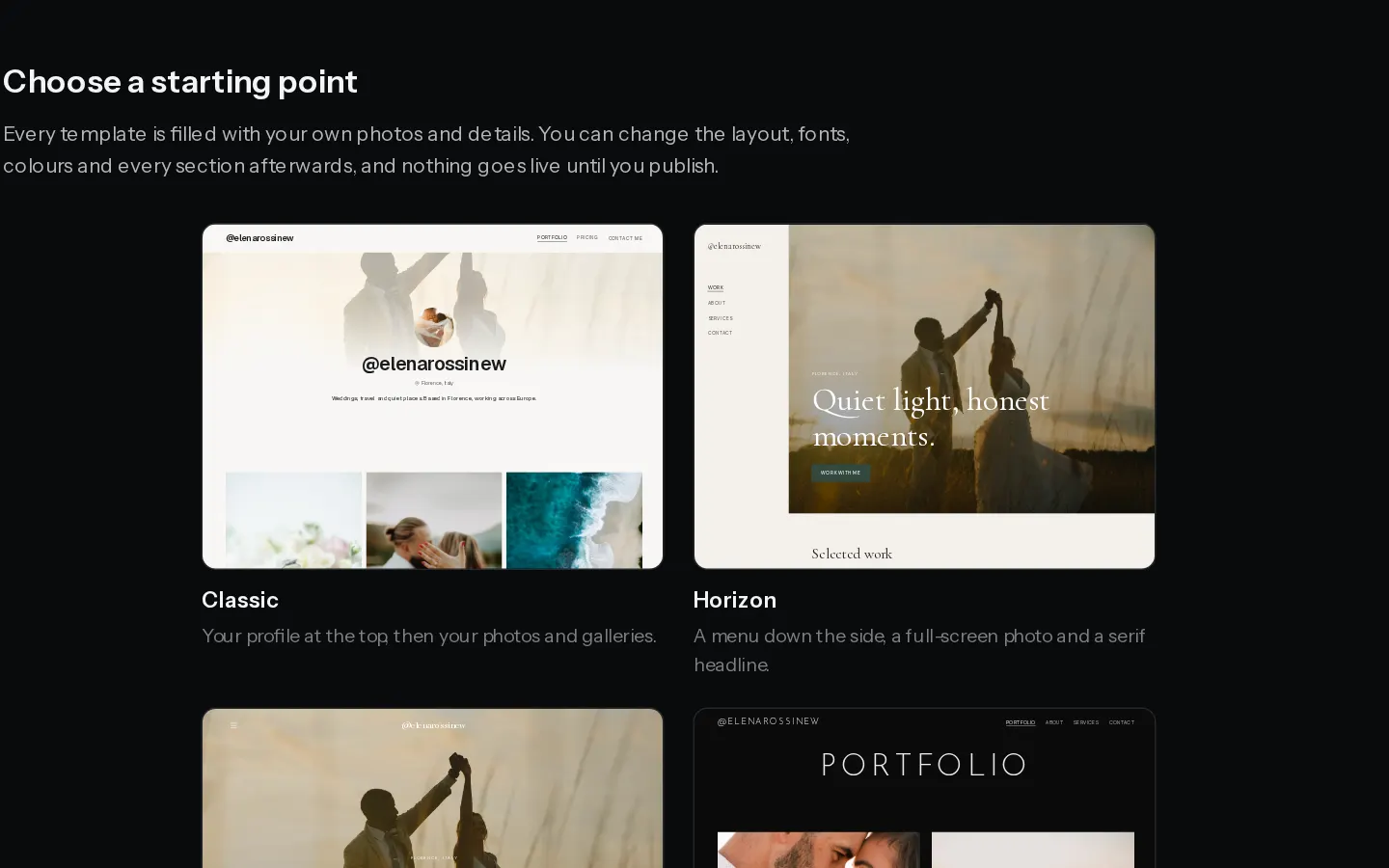
Your website replaces your classic portfolio at the same address, xposureapp.net/@username, or at your own domain. Nothing changes for visitors until you publish.
Every plan can build and publish a homepage. Starter adds 3 more pages, the business sections and your own fonts and colours. Pro and Studio add unlimited pages and up to 500 posts.
Choose a template
- Open the Site builder.
- Under Choose a starting point, pick a template. Each one is already filled with your own photos, name and bio.
If you set a studio name or logo in Settings, Brand, a new site starts with them in its header.
Edit the sections
The editor has three tabs on the left: This page, Pages and Style. Your page is in the middle, and the settings of the section you pick show on the right.
- In This page, select Add next to Sections and pick a section, such as Hero, Photos, Galleries or Client access.
- Click a section in the preview, or in the list, and change its text, photos and layout on the right.
- Use the arrows next to a section to move it, and the other icons to duplicate or delete it.
- Switch between Desktop and Phone at the top to check both sizes.
Your edits save as you go, and the top bar shows Saved. The undo and redo arrows step back through them.
Photo with text, Packages, Contact form, FAQ and Testimonials need Starter or above. Posts needs Pro or Studio. A locked section shows a padlock in the list.
Note: A site only shows photos that are already public: your signature work, your portfolio albums and images you upload in the builder. Photos from client galleries are never offered.
Publish
- Select Publish at the top right. Visitors see the new site within a minute.
- Keep editing. Changes stay in a draft until you select Publish again. Discard changes puts the live version back in the editor.
- Select View site to open it as visitors see it.
Your site is visible once your email address is confirmed.
Change the look or take it down
- In Style, Template look swaps fonts, colours and the header and keeps your pages. Choose another template replaces every page. You can undo it until you leave the editor.
- Take offline brings your classic portfolio back. Your draft stays in the builder.
Next steps
Did not find your answer?
Tell us what you are trying to do. Support replies by email.