Design and order a printed album
Lay out an album from a gallery's photos, send your client a proof and let them approve and pay for it.
Your client reviews the album as a proof in their gallery, asks for changes, then approves and pays. The lab prints it. Albums come with Starter, Pro and Studio, and need Stripe connected. A trial cannot sell them, unless Xposure gave you a complimentary account.
Set up the album
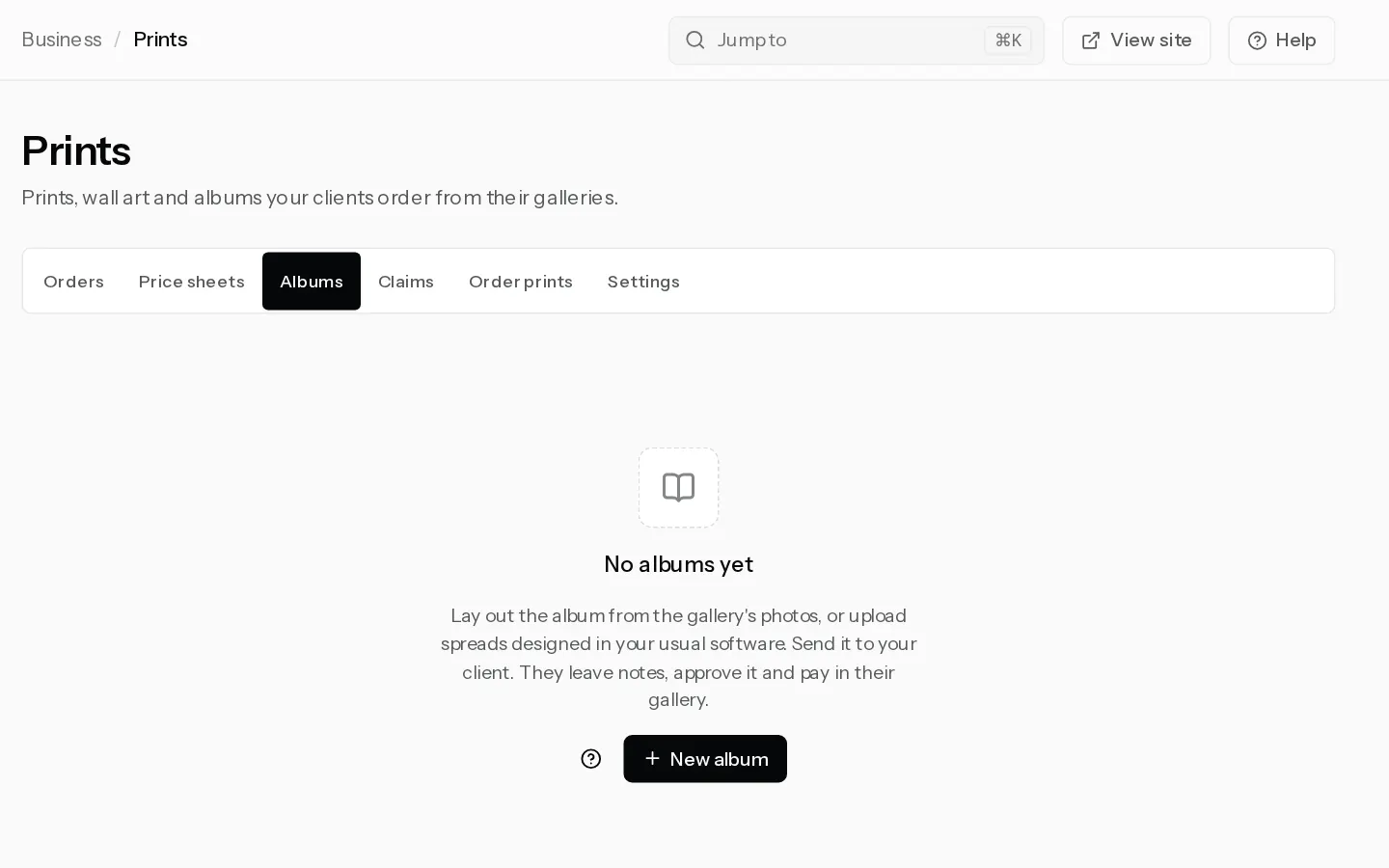
- Open Prints, select the Albums tab, then New album.
- Choose the Gallery and the Book. Each book shows its size and page range.
- Fill in Title, Client email, Price, VAT included and Revision rounds. Rounds default to 2. Enter 0 to 20, or switch on Unlimited. You need the email to send.
- Select Create. The gallery now offers the album.
Shipping is added at checkout. The price is checked against the lab cost when you send.
Design the pages
- Drag photos from the Gallery panel into the frames, or open a frame to pick a photo and crop it.
- To start fast, select Fill the album. It uses the photos your client selected, or all photos, and replaces both covers and every spread. It is off once you upload spreads.
- To use your own design, select Upload spreads: JPEG files up to 60 MB each, or one PDF up to 95 MB.
- Add both covers.
- Read the panel under the pages. Before you can send blocks the proof. A photo under 200 dpi blocks it. Worth a look warns, for example under 300 dpi.
Send the proof
Select Send to client, then Send version 1. Your client gets an email with a link.
Important: You cannot change a version after you send it. To change it, select Start version 2.
After you send
The album shows With your client, then Changes asked or Approved, then Ordered. While it is with your client or has changes asked, answer a note with Reply, or select Give one more to add a revision round.
When your client approves and pays for the album alone, it goes straight to the lab, with no approval hold. Ordered with prints, the whole order waits for your check. Until they pay, you can change the price or start a new version, but not while their checkout is open. See Check and approve print orders.
Did not find your answer?
Tell us what you are trying to do. Support replies by email.