Set up your brand in five minutes
Add your studio name, logos, watermark and colour once, so galleries, emails, your website and your booking page all look like you.
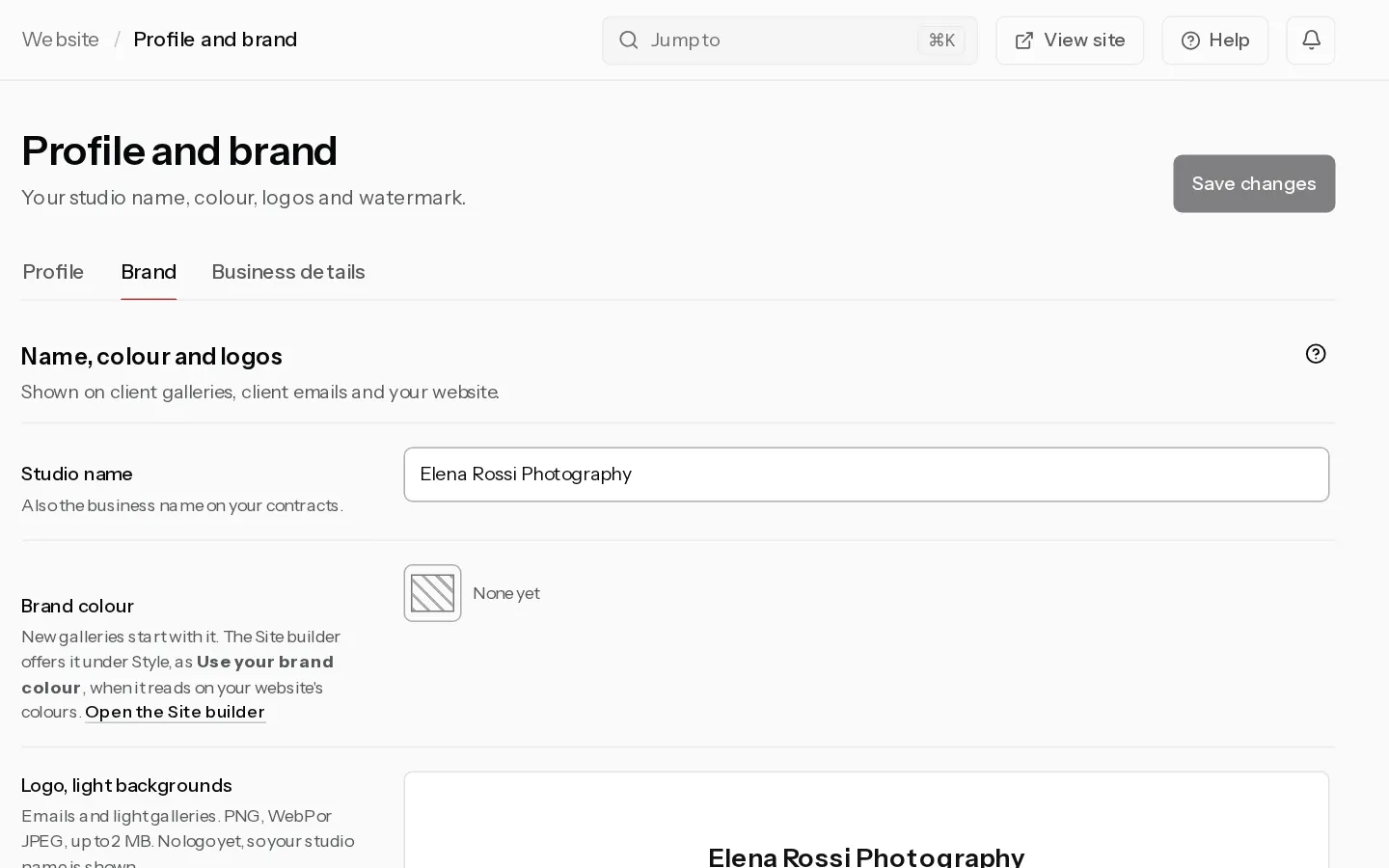
One pass through four screens. Have your logo ready as a PNG with a transparent background, and a light version of it if you have one. The details for each screen are in Set your studio name, logo, fonts and colours.
1. Name, colour and logos
- Select Profile and brand in the sidebar, then the Brand tab.
- Type your Studio name. Galleries, emails, contracts and your website use it.
- Pick your Brand colour and select Save changes.
- Next to Logo, light backgrounds, select Upload. This is your usual logo, dark on a light background. It shows in emails and on light galleries.
- Next to Logo, dark backgrounds, select Upload and pick the light version. It shows on the gallery entry screen and on dark galleries. Skip it if you have none: those places show your studio name instead.
Logos save as soon as they upload. They are PNG, WebP or JPEG, up to 2 MB.
2. Watermark
The watermark shows only on galleries you sell from, and only on photos uploaded after you set it. On Studio, upload your own under Custom watermark on the same tab, as a transparent PNG up to 5 MB, and select Use this watermark. On other plans galleries use the default PREVIEW mark. See Add a watermark.
3. Your website
- Open the Site builder and the Style tab.
- Under Header, select Use my studio logo.
- Next to Accent colour, select Use your brand colour. It is offered only when the colour reads on the site's colours.
- Select Publish.
A new website starts with your brand colour on its own. Your own colours need Starter or above.
4. Your booking page
Your booking page has its own colours. Open Booking page and set them to match. Online booking needs Starter or above.
What changes and what stays
New galleries start with your brand colour. Galleries you already have keep their colours: change one from Edit layout in that gallery. Your logo and studio name show everywhere at once, in every gallery and email.
Did not find your answer?
Tell us what you are trying to do. Support replies by email.