Set the slideshow speed and music
Choose how long each photo stays up in your client's slideshow and add a music track that plays with it.
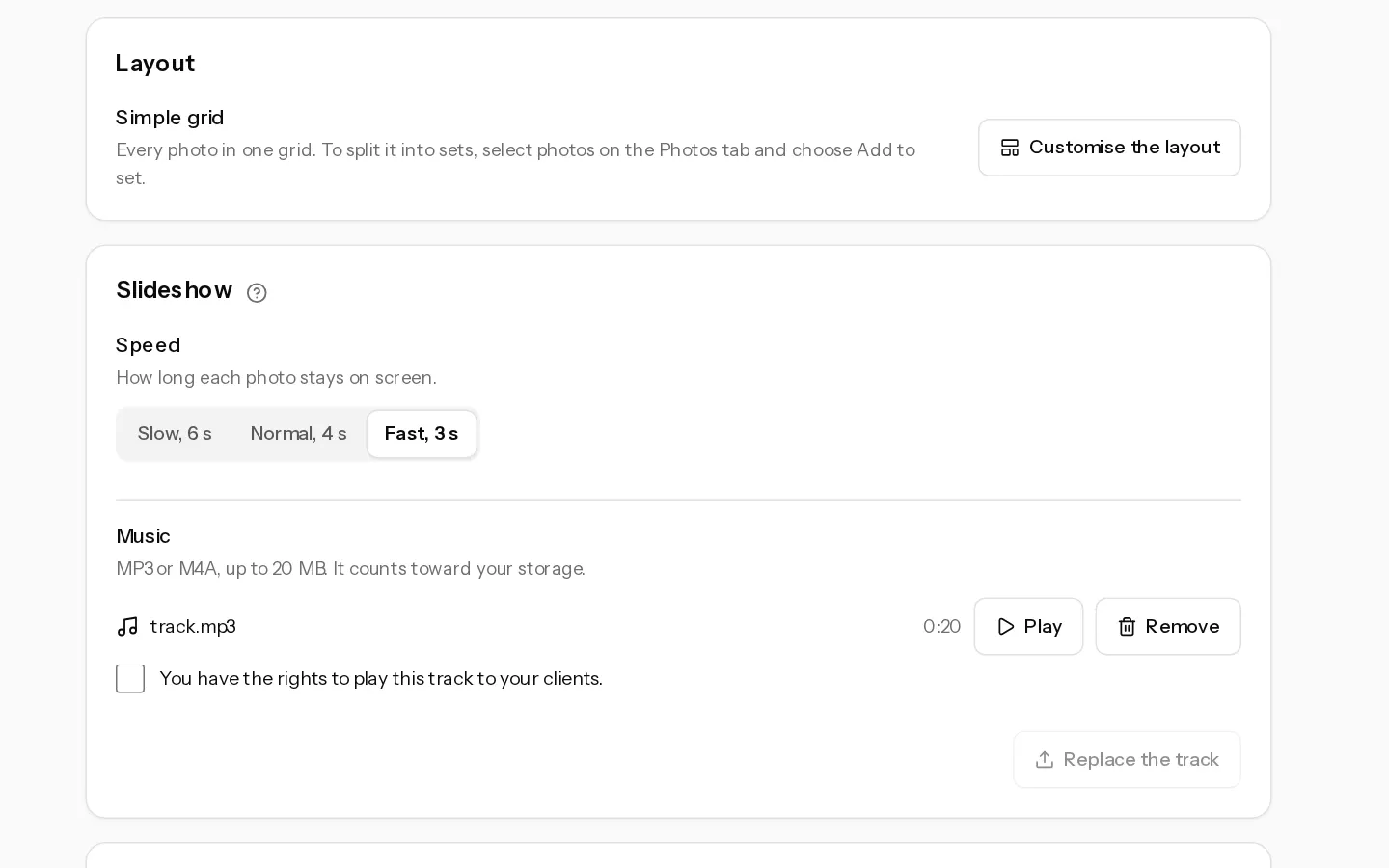
Your client and their guests start the slideshow with Slideshow at the top of the gallery or in the photo viewer. You choose its speed and can add one music track per gallery.
Choose the speed
- Open the gallery, select Settings, then the Look tab.
- Under Slideshow, pick Slow, 6 s, Normal, 4 s or Fast, 3 s. It saves at once.
Each photo stays on screen for that long once it has loaded.
Add music
- On the same Look tab, under Music, tick You have the rights to play this track to your clients.
- Select Upload a track and choose an MP3 or M4A file of up to 20 MB.
- Select Play to check it. Replace the track swaps it for another file, and Remove takes it off.
The music starts when someone starts the slideshow and loops while it runs. It fades out when they pause, close the photo, or switch to another tab. A Mute music button sits next to Pause while it plays.
Note: The track counts toward your storage, like a photo. Duplicating the gallery copies the speed but not the track.
Some browsers block sound until the visitor has tapped the page. The slideshow then runs without music.
Did not find your answer?
Tell us what you are trying to do. Support replies by email.