Manage your clients
Find a client, see their bookings, payments, contracts and galleries in one place, and keep notes and tags on them.
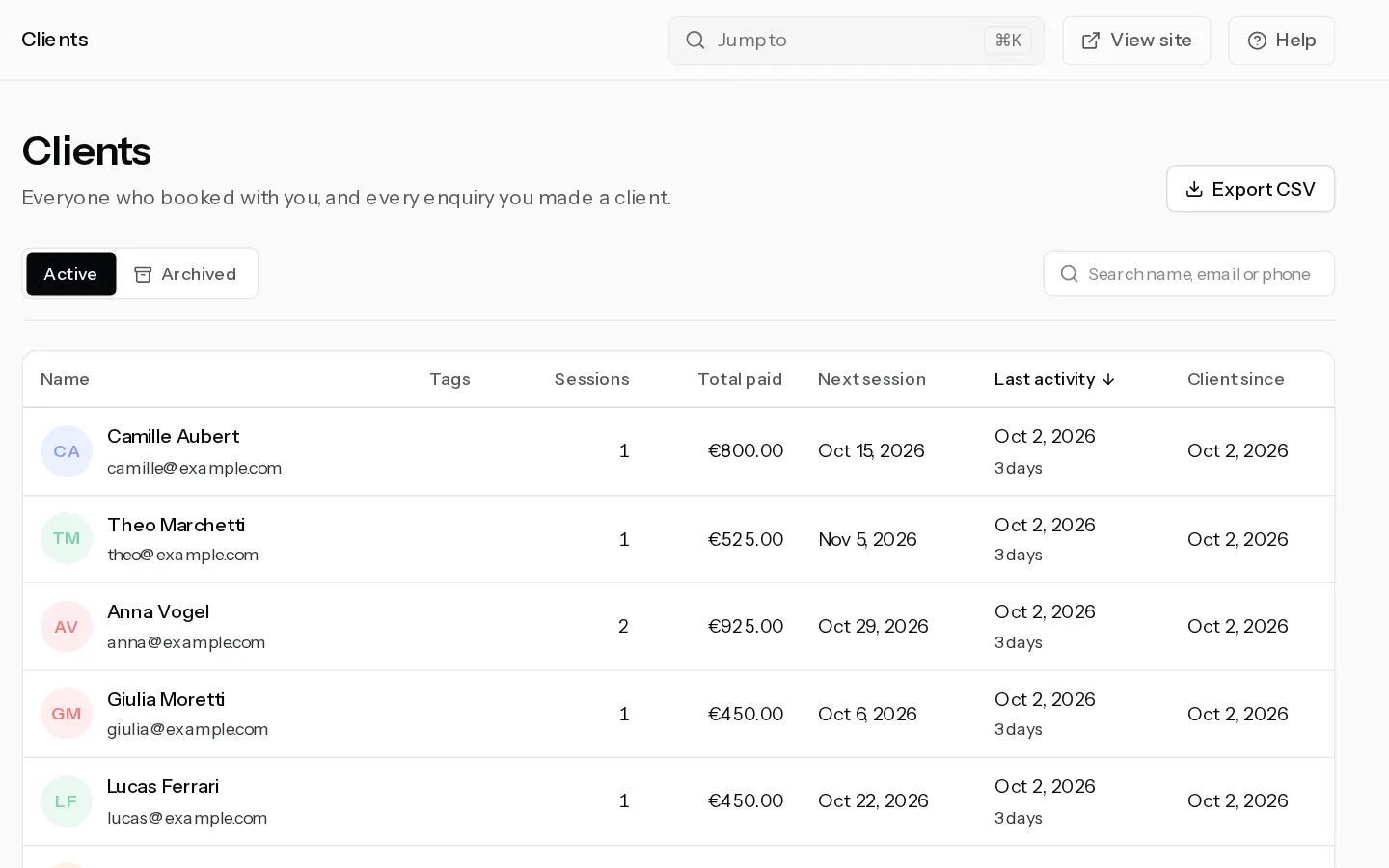
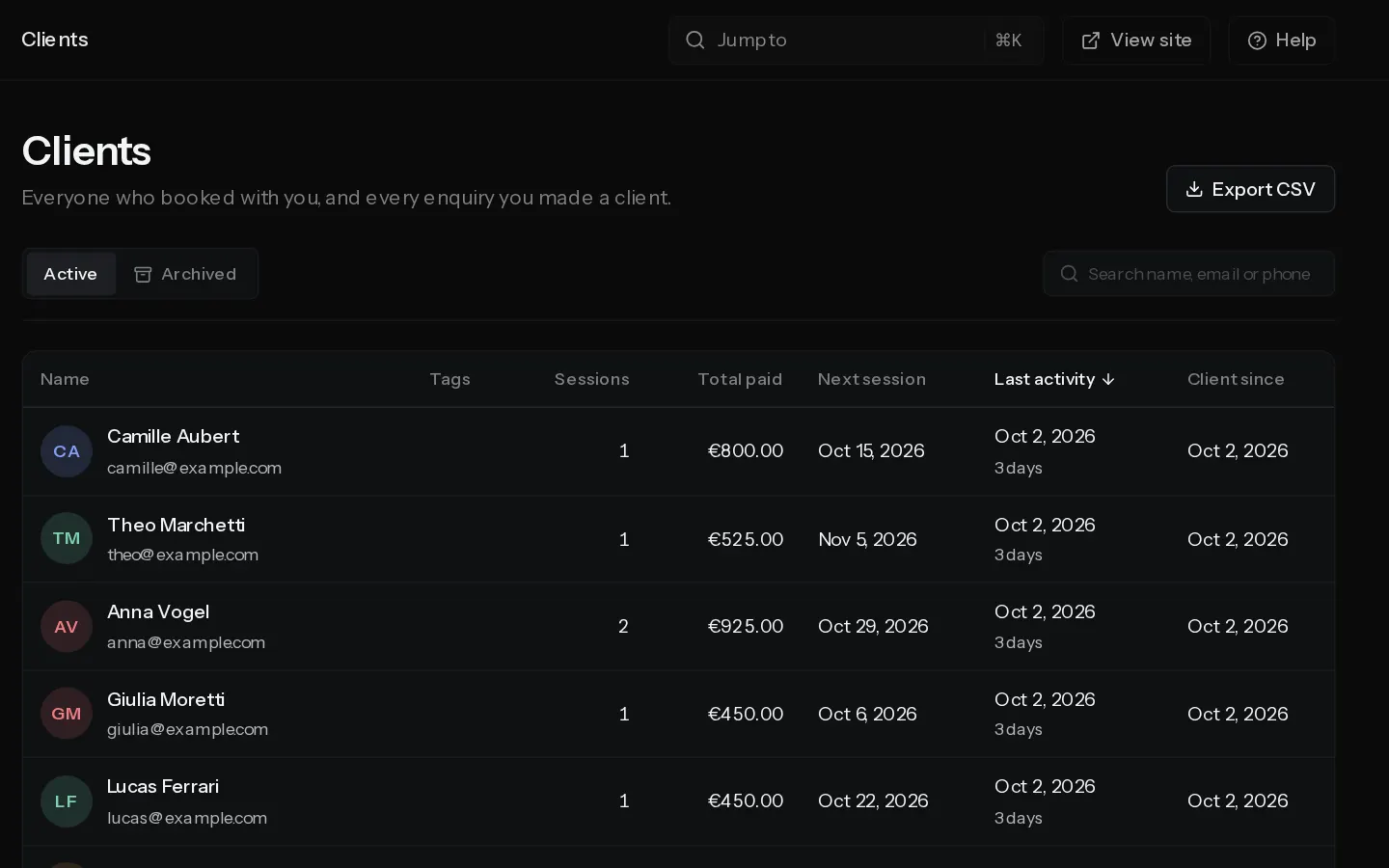
A client appears in your list after their first booking, or when you make an enquiry a client. Their page gathers everything they have done with you.
Find a client
- Open Clients.
- Search by name, email or phone, or pick a tag under All tags.
- Sort by Name, Last activity, Client since, Sessions, Total paid or Next session.
Select Export CSV to download the list.
Read the client page
Select a client to open their page. History lists their bookings, payments, contracts, questionnaire answers, galleries and purchases, newest first. Details holds their email, phone, Instagram and address.
Notes saves when you click away from the box. Use it for what you want to remember next time, such as the dog's name or the album they asked about.
Edit their details
- On the client page, select Edit.
- Change the Name, Phone, Instagram, Address or Tags. Press Enter or type a comma after each tag. A client takes up to 10 tags.
- Select Save.
Their email cannot be changed here. It is how they sign in and how every booking knows them. A photo you add saves straight away, as a JPEG, PNG or WebP up to 5 MB, and counts toward your storage.
Editing a client needs Starter or above. On any plan you can still read every client you have.
Archive, erase or delete
Open More actions on the client page.
- Archive takes them off your list. Their bookings stay as they are. Find them under Archived.
- Delete client is only offered for a client with no bookings.
- Erase personal details answers a request to be forgotten. It removes their name, phone, Instagram, address, tags, notes and photo, and every enquiry from them with its answers. Their bookings, payments, contracts and galleries stay, shown as Erased client.
Important: Erasing cannot be undone.
Did not find your answer?
Tell us what you are trying to do. Support replies by email.