Turn on proofing
Let your client heart their favourite photos, leave notes and send you their picks.
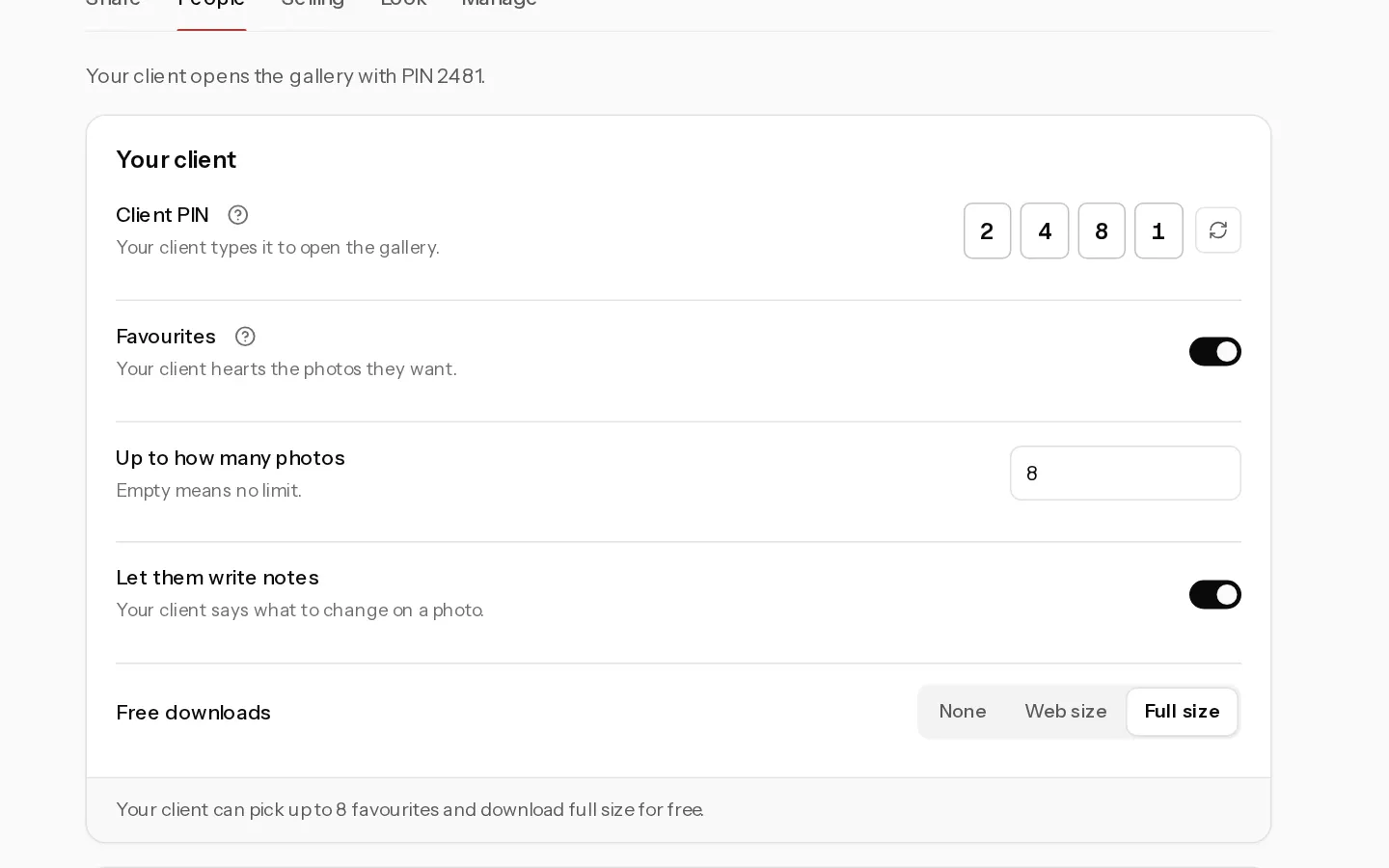
With proofing on, your client hearts the photos they want, writes notes on them and sends you the set when they are done. Only people with the client PIN can pick. Guests see the gallery without hearts or notes.
Proofing is available on Starter, Pro and Studio.
Turn it on
- Open the gallery and select Settings, then the People tab.
- Under Your client, switch on Favourites.
- To cap the picks, type a number in Up to how many photos. Leave it empty for no limit.
- To let your client write notes, switch on Let them write notes.
A Favourites tab appears on the gallery, next to Photos.
You can also start this way. Select New gallery, keep Client gallery, select Next and choose Let the client choose. Favourites and notes are on, and free downloads are off until you deliver.
What your client does
- They open the gallery with the client PIN or the link in your invite email.
- They tap the heart on each photo they want. On the first heart, the gallery asks for their name and email so you know whose picks they are. If they skip, the heart is removed.
- With notes on, they open a photo and use Notes to say what to change.
- A bar at the bottom counts their picks, for example "12 of 20" when there is a limit. When they are done, they select Send 12 favourites to followed by your first name, add an optional message and select Send favourites.
You get an email when they send. Their favourites stay editable afterwards. If they change their mind, they send an update, and you work from the newest set.
At the limit, the gallery refuses another heart and tells your client to remove one first.
Note: If you lower the limit below what your client already picked, they cannot send until they remove some.
Notes are private between visitors. Each person sees only their own notes and your replies to them.
Next: Read your client's picks.
Did not find your answer?
Tell us what you are trying to do. Support replies by email.