Sign your contract and open your documents
Sign the contract your photographer sent with your booking, keep a signed copy and download the documents they shared.
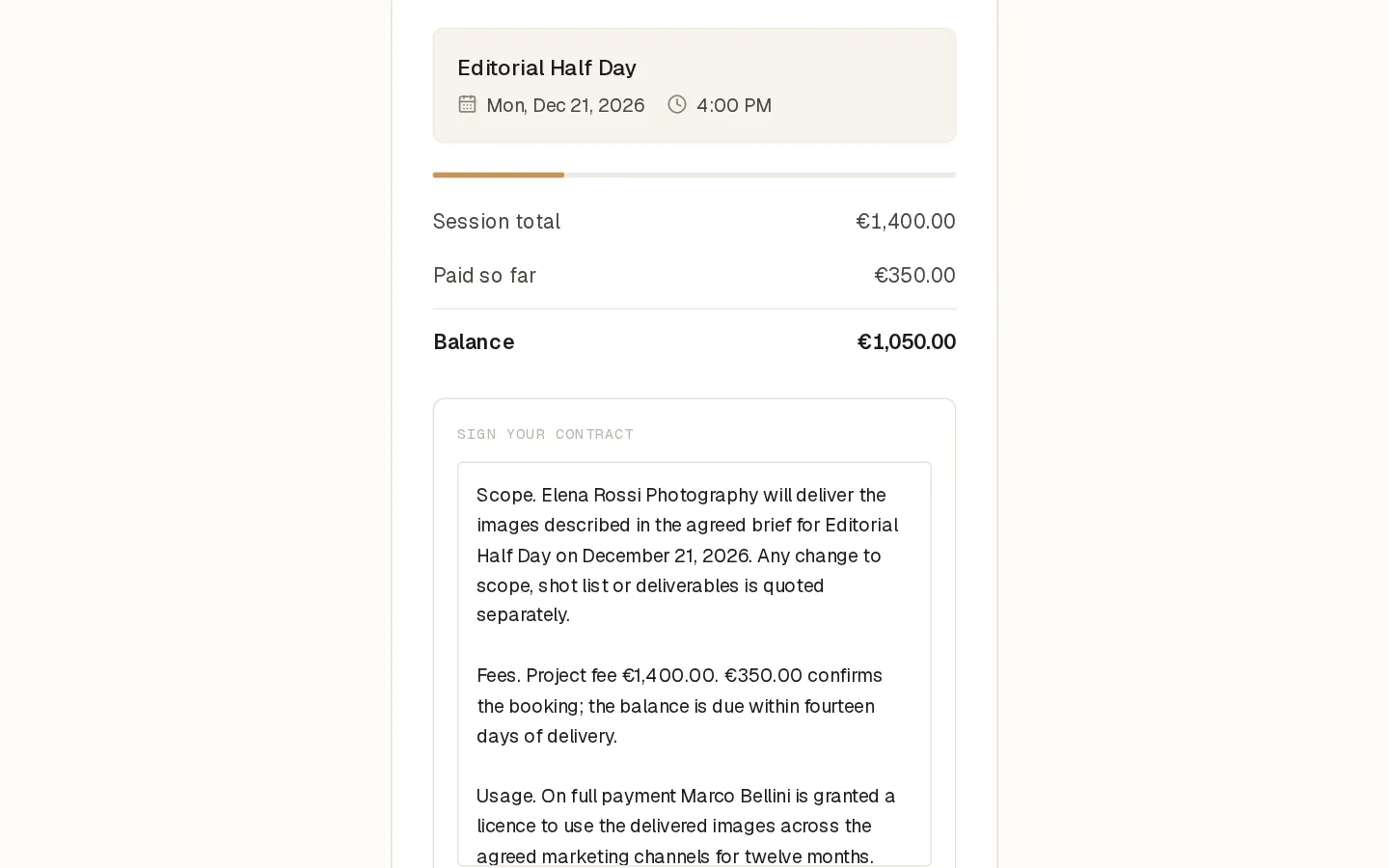
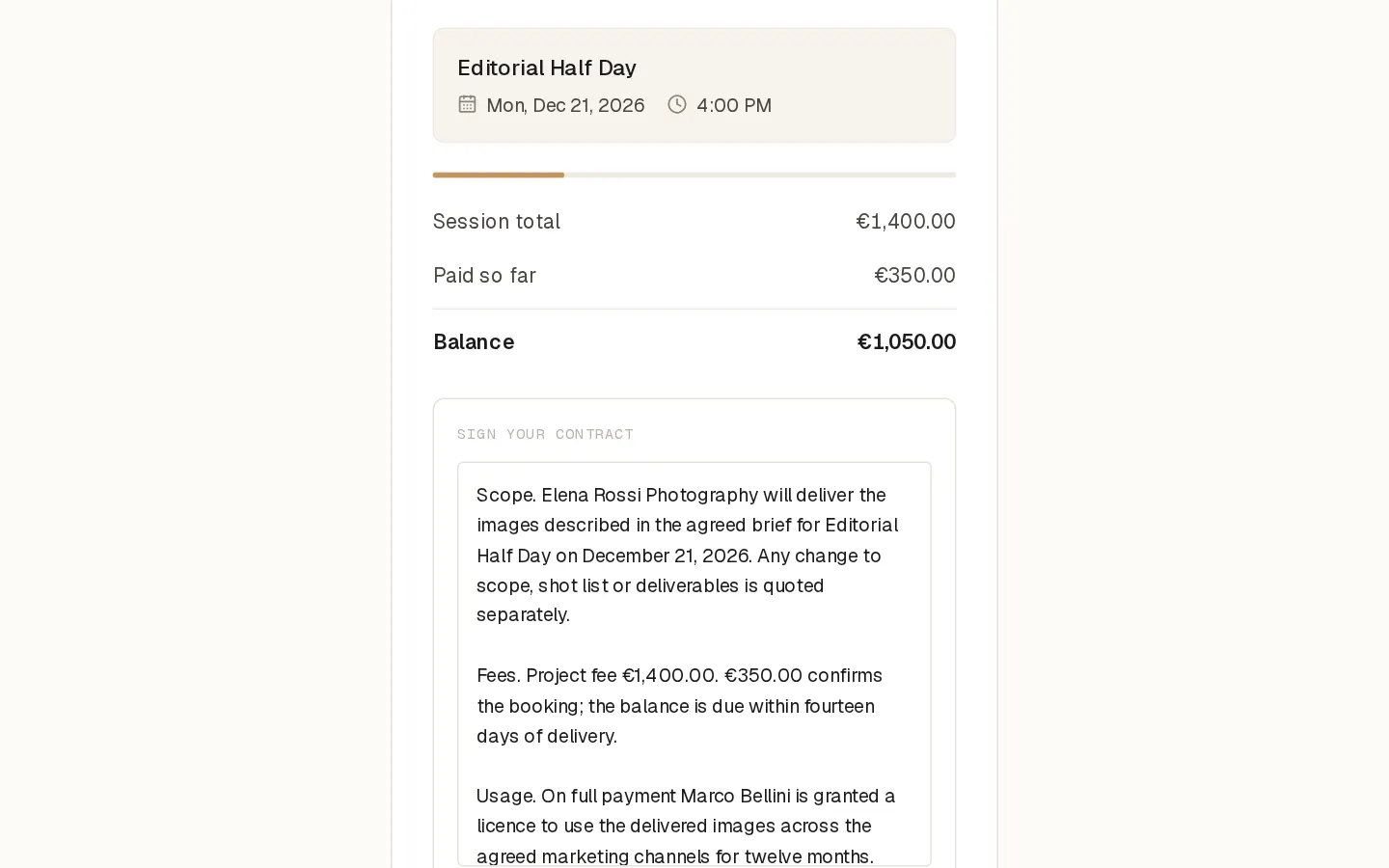
When your photographer adds a booking for you, they can ask you to sign their contract online. They can also share PDFs with you, such as an invoice or a call sheet. Both are on your booking page and in your client portal.
Sign your contract
- Open the booking email from your photographer, such as "Your booking: please sign the contract", "Your booking: please sign and pay the deposit" or, when the date has just been set, "Your session date is set", and select the button at the top. Your photographer may also send you the link themselves. Or sign in to the client portal and select Sign the contract on your session.
- Read the contract under Sign your contract. When no date is set yet, the page says the date is to be agreed with your photographer.
- Type your full name under Type your full name to sign.
- Select Sign the contract.
Your first signature is the one kept. When you pay by card, the Pay button shows once the contract is signed.
Note: If the booking is cancelled, there is nothing left to sign and the contract no longer shows.
Keep a copy of your contract
- Open the client portal, type your email and select Send my link. The link in that email works once and expires after 14 days.
- On your session, select Contract. The signed contract opens as a PDF.
The PDF is made a moment after you sign. If it is not ready yet, try again in a minute. A contract you signed when you booked online is in the same place.
Open your documents
Your photographer can email you when they add a document. The email is titled "shared a document with you", after their name.
- Select View the document in that email. Your booking page opens.
- Under Documents from your photographer's name, select the file to download it.
The same files are buttons on your session in the client portal. They stay there after the session, and on a cancelled booking too. Documents are PDF files.
Related: Book a session and pay the deposit.
Questions about your photos?
Your photographer answers questions about your gallery, order or session. Reply to their email. Contact support only when the site itself does not work.