Order prints from your gallery
Choose a print size and crop, pay with delivery to your door and follow the order until it arrives.
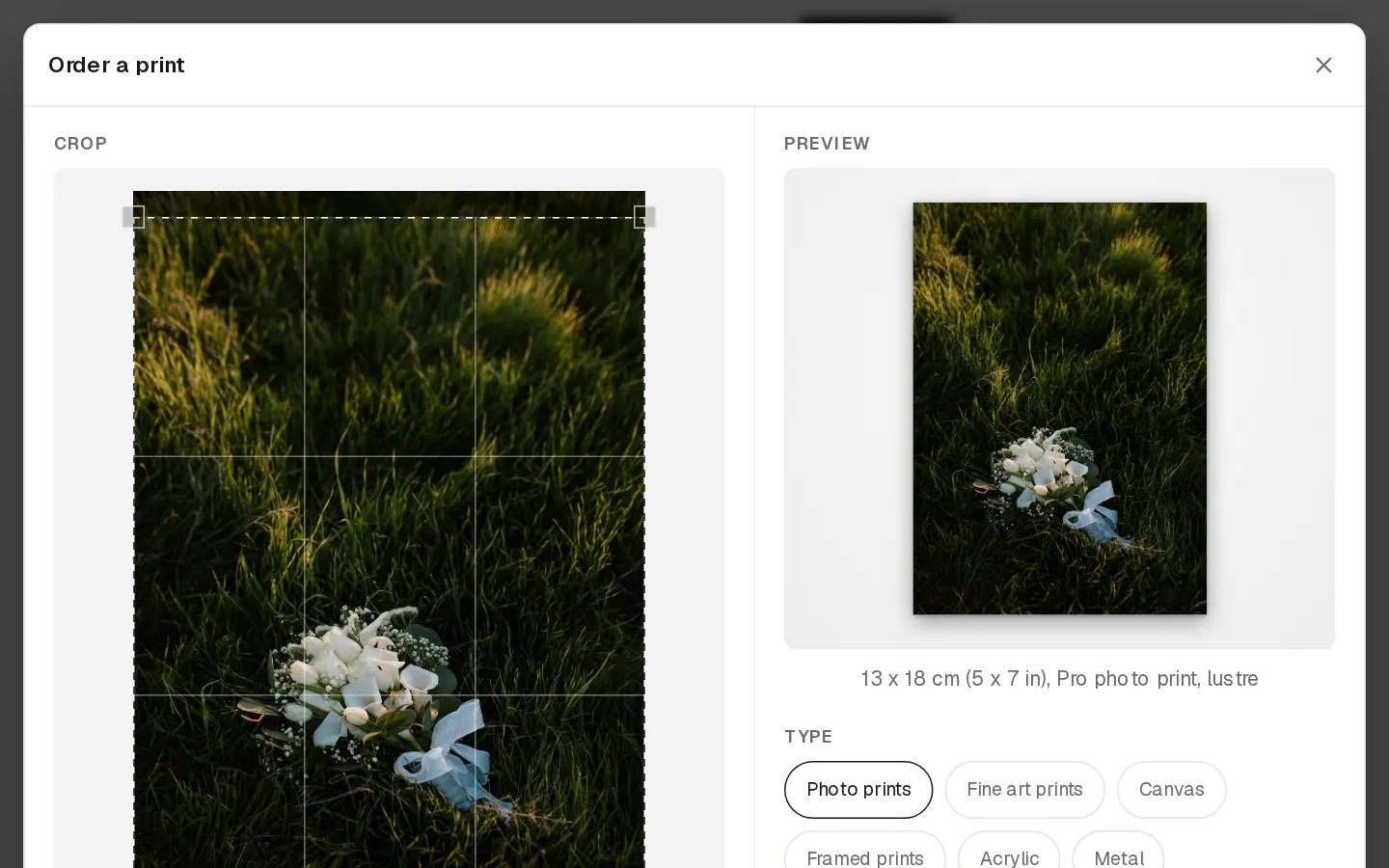
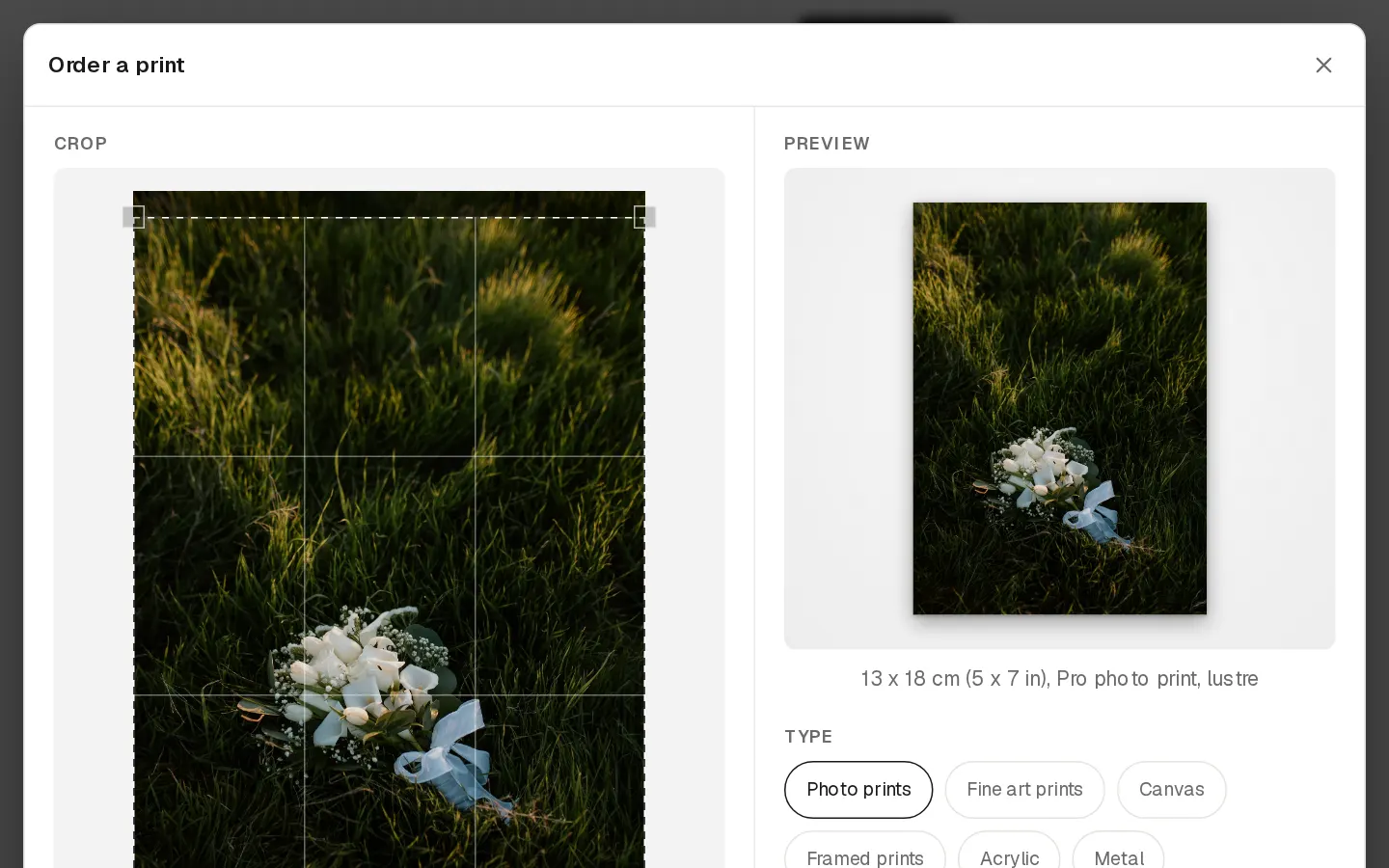
When your photographer offers prints, you order them straight from your gallery. A professional lab makes them and ships them to you.
Order a print
- Open your gallery and choose a photo. Select Print, or select Buy and then Choose a print under Print. On a phone, tap the photo first to see these buttons.
- In Order a print, choose the print type, then the size. A size the photo does not have enough pixels for cannot be chosen, and "May look slightly soft at this size" warns you before you pick it.
- Drag the frame or its corners to choose what prints, and switch the orientation if you need to.
- Set the number of copies and select Add to cart.
- Add more prints the same way, then open your cart (View cart) and select Checkout.
Check out
- Under Contact, enter your email. Your receipt and delivery updates go there.
- Under Delivery address, enter where the prints should go.
- Under Shipping, choose a delivery option. The options appear once your address is complete.
- Under Payment, enter your payment details and select Pay.
A discount code from your photographer goes in Discount code. A business can add an EU or UK VAT number.
Note: Your photographer checks every print order before it goes to the lab. A printed album you approved goes straight to the lab.
Follow your order
The link in your order email opens the order page. It shows each step: Paid, Photographer check, At the lab, Shipped and Delivery, with a tracking link once your parcel is on its way. If your photographer decides not to print an order, it shows Not printed and you are refunded.
Report a problem
If a print arrives damaged, misprinted or wrong, or a parcel does not arrive:
- Open the order page and select Report a problem under Problems with your prints.
- Choose the prints and what happened, describe the problem and add up to 6 photos.
- Select Send report. You get an email as your report moves on.
The order page says how many days after delivery you can report a problem. After that, a print shows Too late to report.
Questions about your photos?
Your photographer answers questions about your gallery, order or session. Reply to their email. Contact support only when the site itself does not work.