Buy the memory and the screen. Everything else on a laptop spec sheet matters less than photographers are led to believe, and the two things that decide whether editing a wedding is pleasant or miserable are rarely the ones on the front of the box.
Here is the order to spend money in, and what each part is actually doing when you drag a slider.
Memory first: 32GB if you shoot volume
16GB is the floor for editing raw files, and it works for portrait sessions of a few hundred frames. It starts to hurt when you have Lightroom open, a browser with thirty tabs, and a panorama merging in the background.
32GB is the number to aim for if you shoot weddings, do heavy retouching in layers, or edit 45 megapixel files. It is the single upgrade that changes the day-to-day feel the most.
64GB is for video work and very large composites. For photography alone it is usually money better spent on storage or a screen.
The important caveat: memory in most modern laptops is soldered to the board and cannot be upgraded later. Whatever you buy is what you have for the life of the machine, so this is the one spec worth stretching for at purchase.
The screen, which most people never check
This is where laptops quietly fail photographers. A screen that cannot show the colours you are editing means you are guessing, and the guess shows up on the client's phone.
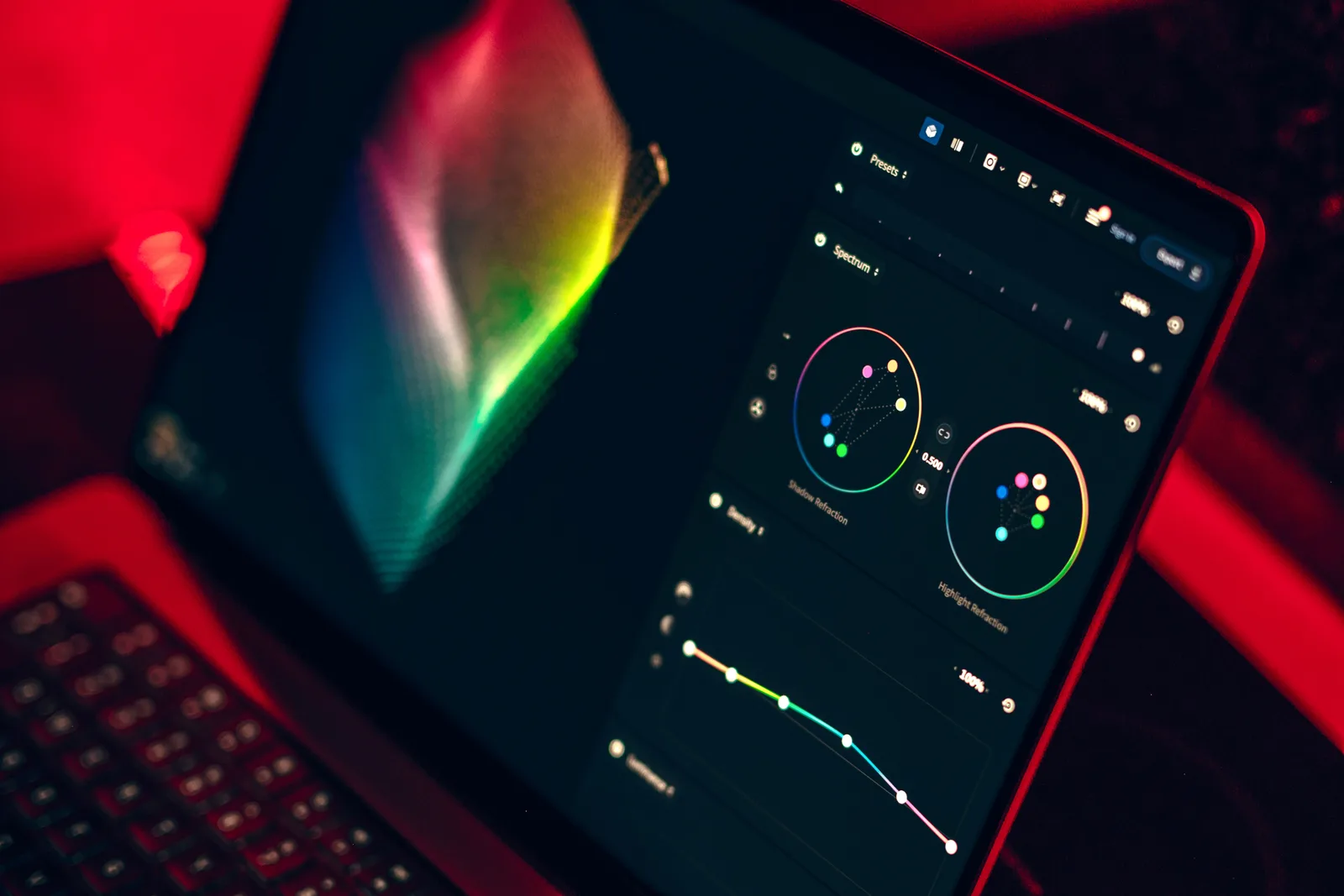
What to look for:
- 100% sRGB coverage, minimum. This is the web standard and the space most of your clients will view in.
- DCI-P3 coverage of 95% or more if you print or want headroom.
- 400 nits or brighter, because editing on a dim panel produces images that come back too dark on everyone else's screen.
- A matte or good anti-glare finish if you ever work outside a controlled room.
Resolution matters less than colour. A colour-accurate 1600p panel beats a 4K one with 65% sRGB coverage every time.
And whatever you buy, calibrate it. A hardware calibrator is a one-off cost that fixes the difference between what you see and what exists in the file, which is related to but separate from why your photos look washed out on the web.
Processor and graphics: less than you think
Modern raw processing uses both, and both are fast enough on any current mid-range machine. The practical differences show up in export times and in AI features like denoise and masking, which lean on the GPU.
Apple silicon MacBook Pros are the default in this category for a reason: strong single-core performance, excellent battery life under load, and a screen that usually meets the criteria above without further thought. The base chip is sufficient for photography, and the Pro and Max variants are mainly buying you video performance.
On the Windows side, look at the workstation and creator lines rather than the gaming ones, since the panels are better calibrated and the chassis run cooler. Gaming laptops are frequently faster for the money and come with screens that are tuned for punchiness rather than accuracy, plus fans you will hear all day.
Storage: fast internally, big externally
1TB internal is the practical minimum, and it is not where your archive lives. It holds the operating system, the applications, the Lightroom catalog, and the current jobs. Nothing else.
The catalog and the previews should sit on the internal drive rather than an external one, because that is what makes browsing feel instant. Finished work moves off to external drives and to a cloud backup, which is the whole point of a 3-2-1 setup.
External speed matters when you are working directly from a drive on location. A fast NVMe drive in a USB 4 or Thunderbolt enclosure costs little more than a spinning disk of the same size and is several times faster.
Ports, and the dongle question
Check for an SD card reader and how many ports you actually get. Card readers built into the chassis save you a dongle you will eventually leave in a hotel, and a laptop with two ports means a hub for anything involving a drive and a monitor at once.
If you tether on shoots, confirm the port type your camera needs before buying.
Realistic budgets
- Around $1,000 to $1,300: a well-chosen machine with 16GB and a decent sRGB panel. Perfectly capable for portrait and event volumes.
- $1,600 to $2,200: the sweet spot. 32GB, a bright wide-gamut display, 1TB, and enough processor to never think about it. This is the range most working photographers should buy in.
- Above $2,500: you are paying for video capability, extra screen size, or very large memory. Photography rarely needs it.
Refurbished and one-generation-old machines are excellent value here, because the performance difference between generations is much smaller than the price difference.
Desktop or laptop?
If you edit at the same desk every day, a desktop plus a proper external monitor gives you dramatically more machine for the money, and a 27 inch calibrated display makes culling and retouching faster in a way no laptop panel can.
Buy the laptop if you travel, tether on location, or want to show galleries to clients in person. Buy the desktop if the honest answer is that you edit in one room. The hybrid answer, a modest laptop plus a good external monitor at home, is what most working photographers end up with, and it is usually the right call.
Whatever you land on, the machine is only one part of a workflow that gets slow for other reasons: an unpruned catalog, a cull that never ends, and previews rendering at the wrong moment. If editing feels slow today, it is worth checking how the catalog is organised before concluding that the problem is the hardware.
One thing the screen spec does not tell you is whether it is showing you the truth. Calibrating it costs about $170 and is the difference between a print you approved and a print you recognise. The same machine is also what you tether to, and shooting tethered is the fastest way to know your focus is right while you can still do something about it.